Automate Daily Tasks with AI Workflows to Save Hours
Learn how to set up simple AI workflows that cut routine work time for small business owners.
Routine administrative work—data entry, inbox triage, appointment reminders—eats up a large part of a manager’s day. Many small‑business owners say a substantial share of their time is spent on repetitive, low‑value tasks.
When an automated workflow handles those steps, two primary benefits appear:
- Staff focus shifts to customers. A barista can spend more time chatting with regulars, a therapist can prepare better for client sessions, and a retail manager can concentrate on visual merchandising instead of pulling manual reports.
- Consistency improves. Software doesn’t get tired or distracted, so copying a phone number or calculating a sales total is less likely to result in a simple human error.
The goal isn’t to replace human judgment, but to remove friction from predictable processes. Start small: identify one task that is always done the same way and let a tool handle it. The result is usually a reduction in manual effort that frees up time for higher‑value activities.
Step‑by‑Step Guide to Building Your First Workflow
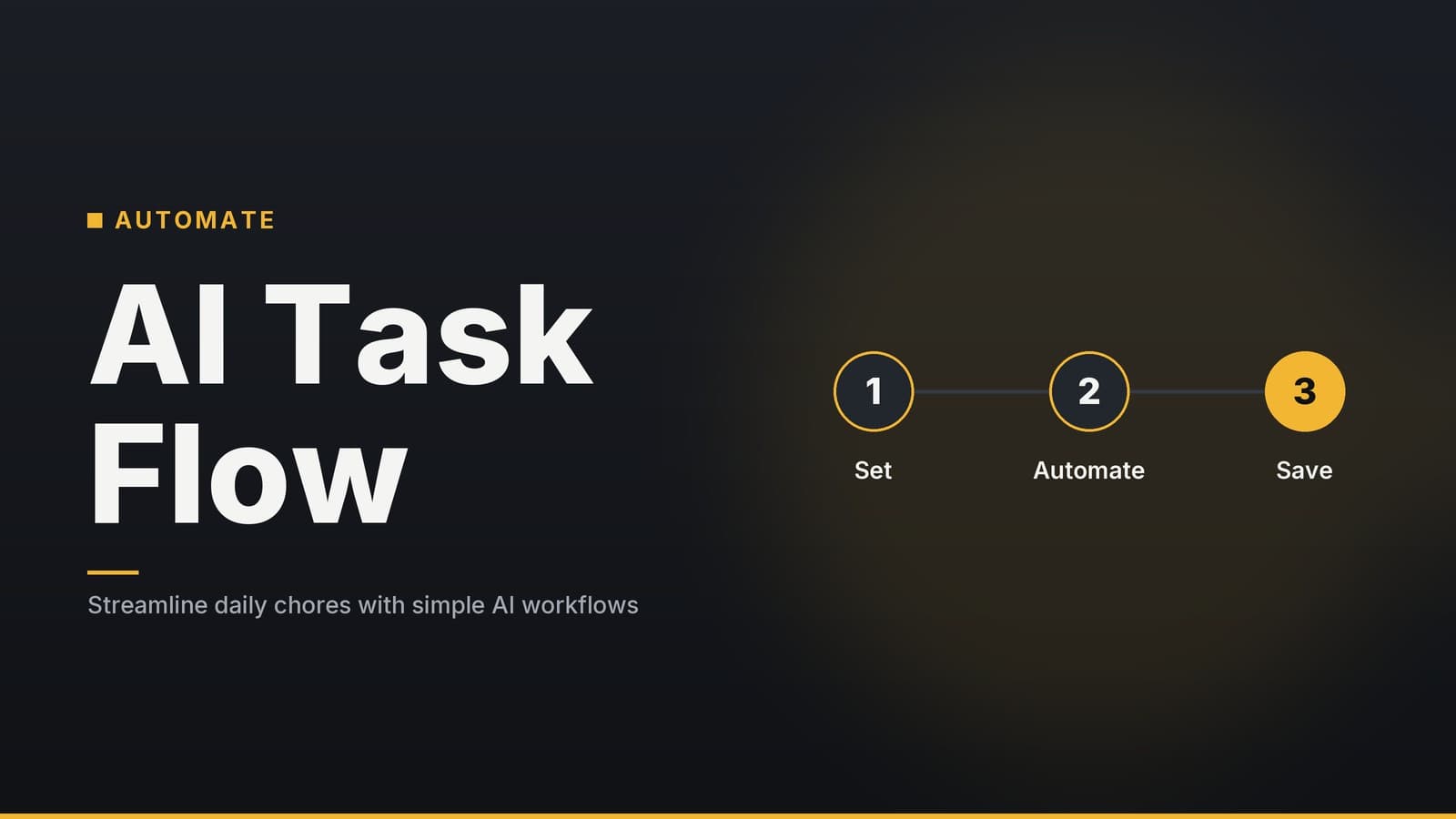
You don’t need to write code to create an automated workflow. Most modern platforms use a visual “if‑this‑then‑that” interface. Below is a practical checklist for a basic flow—sending a booking confirmation.
| Step | Action | Purpose |
|---|---|---|
| 1. Identify the task | Choose a single, repeatable task that occurs at least once a day (e.g., “Send confirmation email after a client books a slot”). | Keeps the project manageable and allows quick testing. |
| 2. Select a platform | Pick a low‑code automation tool (such as Zapier, Make, or a comparable service) that offers visual building blocks and connects to your existing apps. | Eliminates the need for programming; uses drag‑and‑drop. |
| 3. Define the trigger | Select the event that starts the flow, such as “New event created in Google Calendar” or “New row added to Airtable.” | Ensures the workflow runs only when the specific action occurs. |
| 4. Add the AI step | Insert an AI action (using a model like GPT or Claude) to process the data. For example, turn a short booking note into a friendly, personalized summary. | Handles language generation or data extraction, saving manual copy‑pasting. |
| 5. Set the final action | Connect the AI output to a delivery service (e.g., Gmail, Outlook, or an SMS gateway) and map the text into the message body. | Delivers the result automatically to the customer or internal team. |
| 6. Test with real data | Run the flow using dummy data. Verify that the email looks correct and the AI text is appropriate and error‑free. | Catches formatting glitches or logical errors before going live. |
| 7. Activate and monitor | Turn the workflow on. Use the platform’s log or alert features to check for failures weekly. | Early detection prevents missed communications or spam issues. |
Tip: If you already use a calendar or booking system, many platforms provide pre‑built templates for common scenarios. Copy a template and tweak the AI step to match your brand voice. For more ideas on automating specific tasks, see our broader guide on AI‑driven automation for small businesses (available on the HeyGrowin blog).
Cost & Budgeting Considerations
Automation costs usually consist of two parts: the workflow‑platform subscription and the usage fees for the AI model. Because pricing models differ between providers and can change, verify current rates on each vendor’s website before committing.
Understanding the Pricing Structure
Most platforms use a tiered subscription model based on the number of “tasks” (actions) performed per month. AI usage is often billed separately by the provider based on “tokens” (units of text).
| Cost Component | Typical Pricing Model | What to Look For |
|---|---|---|
| Workflow platform | Monthly subscription tied to task volume or user count. | Check the free‑tier limits and how many tasks your workflow will generate each month. |
| AI usage | Pay‑as‑you‑go per token (input + output). | Estimate the average length of prompts and responses; see if the platform bundles AI credits or charges the AI provider directly. |
| Add‑ons | Flat fee or per‑feature charge. | Look for costs for premium connectors (e.g., SMS gateways, custom webhooks) or extra data storage. |
Budgeting Strategy
Avoid guessing your costs. Use a phased approach:
- Start with the free tier. Most platforms offer a no‑cost plan with limited tasks—enough for testing a single workflow.
- Track usage. During the first month, monitor the AI provider’s dashboard to see exactly how many tokens your workflow consumes.
- Calculate a baseline. Multiply your average monthly token usage by the current per‑token rate, then add the platform’s subscription cost.
- Set alerts. Configure usage alerts in the AI provider’s dashboard so you’re warned before any unexpected spikes (e.g., during a promotion).
Reminder: Prices, plan limits, and included features change frequently. The tables above illustrate typical structures, not fixed quotes. Always confirm the latest details on the vendor’s pricing page.
Real‑World Examples Across Industries
The same basic structure—trigger, AI action, final action—applies in many sectors. Below are concrete ideas for different business types.
| Industry | Automation Idea | Workflow Structure |
|---|---|---|
| Clinic | Patient reminder & intake summarization | Trigger: New appointment in calendar. AI Action: Summarize patient’s pre‑visit questionnaire into key points. Final Action: Send a reminder SMS with relevant context to staff. |
| Restaurant | Low‑stock alerts for perishables | Trigger: Inventory spreadsheet row falls below a threshold. AI Action: Check recent sales trends to suggest reorder quantity. Final Action: Send a Slack message to the chef with the suggested order. |
| Retail shop | Daily sales snapshot | Trigger: End‑of‑day report generated by POS system. AI Action: Compile total sales, top items, and returns into a short paragraph. Final Action: Email the report to the manager at a set time. |
| Service firm | Smart email routing | Trigger: New email to a shared inbox. AI Action: Analyze subject and body to categorize intent (billing, tech, sales). Final Action: Forward the email to the appropriate team member with a tag. |
Each flow uses the same three building blocks. Once you’ve built one workflow, you can duplicate the structure and adapt the steps for other tasks. For a deeper look at AI‑driven scheduling for small businesses, see the relevant article on the HeyGrowin blog.
Common Pitfalls and Risk Management
Automation can introduce new risks if not managed carefully. The table below lists typical issues and practical safeguards. These steps help manage operational risk but do not replace legal or compliance advice; consult a professional for regulations such as GDPR or HIPAA.
| Pitfall | Risk | Practical Safeguard |
|---|---|---|
| Over‑automating critical data | AI may misinterpret nuanced information (e.g., patient allergies, financial figures). | Human‑in‑the‑loop: Add a manual review step for any output that affects safety, compliance, or significant financial decisions. |
| Lack of monitoring | Token costs can spike if a workflow loops or a trigger fires repeatedly due to a bug. | Set alerts: Configure usage alerts in the AI provider’s dashboard and review workflow logs weekly. |
| Data‑privacy concerns | Sending personal data to third‑party platforms may raise privacy issues. | Check policies: Verify the platform’s data‑residency options, encryption standards, and processing agreements. |
| Trigger misconfiguration | A broad trigger (e.g., “any update”) may fire on minor edits, creating unnecessary tasks and costs. | Specific triggers: Use precise conditions like “status changed to ‘Confirmed’” rather than generic updates. |
| Scaling too quickly | Complex chains can mask failures, leading to silent errors. | Incremental rollout: Start with a single‑step flow, test thoroughly, then add actions or logic gradually. |
Key takeaway: Keep a human eye on the most important outputs. Regular log reviews and a manual override option for critical tasks ensure reliability.
How HeyGrowin Can Help
HeyGrowin offers ready‑made AI‑driven tools—such as chatbots, booking assistants, and inventory alerts—that integrate with the low‑code platforms described above. Whether you need a pre‑configured workflow for appointment reminders or a custom dashboard for daily sales, our team can help set up these systems to reduce manual workload.
Note: This section is for informational purposes about HeyGrowin’s services. Evaluate all tools based on your specific business needs and budget.
Learn more at https://heygrow.in.
Frequently asked questions
Do I need a developer to set up these workflows?
No, most low‑code platforms provide visual builders that non‑technical users can navigate with a few clicks.
What if the AI makes a mistake?
Set up error notifications and keep a manual override; review outputs regularly to catch inaccuracies.