Automate Invoice Reminders: Guide for Small Businesses
Step‑by‑step instructions to set up automated invoice reminders and reduce late payments.
Why Automated Reminders Matter
- Improved cash‑flow timing – When invoices are paid promptly, the days‑sales‑outstanding (DSO) metric falls, meaning cash is available sooner for payroll, rent, and stock. Faster payments can reduce the need for short‑term borrowing.
- Consistent brand experience – A scheduled, well‑written email shows customers that you run an organized business and that you respect their time.
- Reduced manual effort – Automated reminders cut the number of phone calls and data‑entry tasks needed to chase late payments.
Note: The exact impact on overdue days varies by industry, client base, and the tone of the reminders. Small‑business owners often see a measurable improvement, but results should be tracked locally rather than assumed.
Choosing the Right Tool
When selecting a reminder solution, compare three dimensions that matter most to non‑technical owners: cost, integration ease, and performance metrics such as delivery and open rates.
| Dimension | Free / Low‑Cost Options | Mid‑Tier SaaS (per‑user subscription) | Built‑In Accounting Feature |
|---|---|---|---|
| Typical price range | Free plans often have limits; verify the details for each vendor | Per‑user subscription; most vendors offer a free trial | Included in the subscription you already pay for (e.g., QuickBooks Online) |
| Integration method | CSV/Google Sheet import or limited API connectors (e.g., QuickBooks, Xero) | Direct API connections to major invoicing platforms; Zapier or Integromat bridges also available | Uses the same database as your invoices; no extra connector needed |
| Scheduling flexibility | Usually 1‑2 reminder dates | Supports multiple custom dates (pre‑due, due, post‑due) | Typically supports at least three dates; check the settings screen |
| Template capabilities | Plain‑text with a few merge tags | Offers a rich‑HTML editor and dynamic fields (e.g., {{customer_name}}) | Same template engine as invoices; may lack advanced styling |
| Delivery performance* | Varies; depends on sending domain and provider settings | Often includes deliverability features such as SPF/DKIM support and bounce handling | Depends on the accounting platform’s email service |
| Reporting | Simple list of sent emails | Dashboard with delivery rate, open‑rate, click‑through, and overdue‑payment conversion | Basic logs; deeper analytics may require an add‑on or external tool |
*Delivery and open‑rate numbers vary by provider, list quality, and compliance practices.
What to Look For
- Integration compatibility – The tool should pull the invoice number, due date, amount, and customer email directly from your existing system (QuickBooks, Xero, Wave, or a spreadsheet).
- Scheduling flexibility – At least three trigger points (e.g., 3 days before, on the due date, 7 days after) give you a balanced cadence without overwhelming the customer.
- Template control – Ability to insert placeholders like
{{invoice_amount}}keeps each email personal while avoiding manual copy‑pasting. - Compliance features – Look for built‑in unsubscribe links, clear sender identification, and easy access to bounce reports to stay within GDPR, CAN‑SPAM, and similar regulations.
- Pricing model – Pricing structures can be per active user, per invoice, or subscription‑based; verify the details for the vendor you choose.
If you already use a CRM (HubSpot, Zoho CRM) or a project‑management tool, check whether it already offers a reminder workflow before adding a separate SaaS product.
Step‑by‑Step Setup Checklist
| Step | Action | Quick tip |
|---|---|---|
| 1 | Identify required invoice fields – due date, amount, customer email, invoice number. | Export a sample CSV from your invoicing software and confirm column headings. |
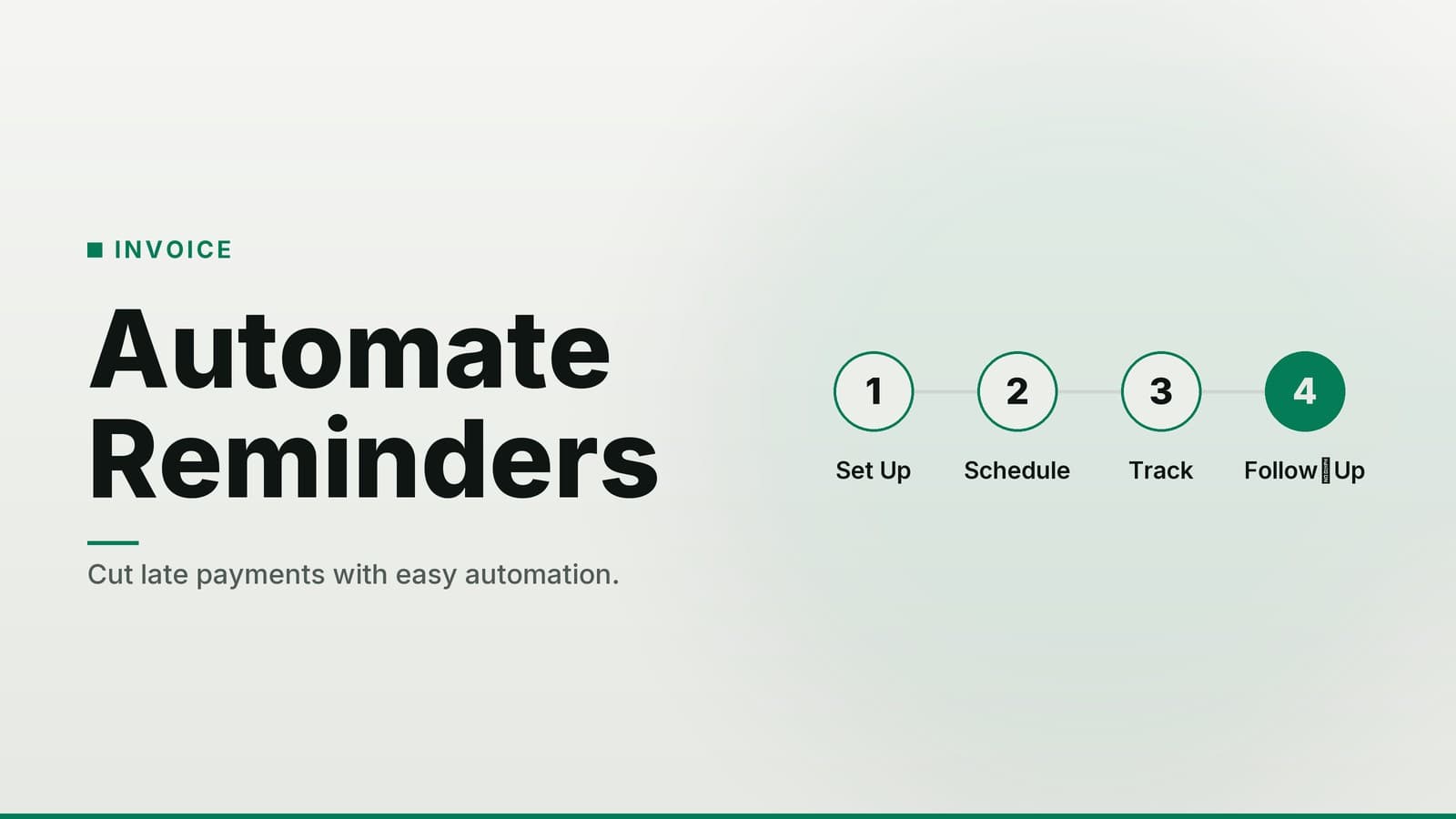
| 2 | Define a reminder schedule – e.g., 3 days before due, on due date, 7 days after. | Keep the total number of reminders to 3–4 to avoid “spam fatigue.” |
| 3 | Draft concise templates for each stage (pre‑due, due, overdue). | Include a clear call‑to‑action and a payment link (Stripe, PayPal, or bank portal). |
| 4 | Map fields to placeholders – most tools use {{field_name}} syntax. | Test one placeholder at a time; send a draft to yourself to verify formatting. |
| 5 | Run a test batch – select 2–3 real invoices, set the tool to “sandbox” or “draft” mode, and send the emails to your own address. | Check that links work, PDFs (or secure links) display correctly, and the email looks good on mobile. |
| 6 | Activate the automation – switch from test to live mode. | Schedule a quick review after the first week to confirm reminders are firing as expected. |
| 7 | Monitor results – track how many invoices move from “overdue” to “paid” each week. | If you use a CRM, add a tag like “reminder sent” to the customer record for future reference. |
What you need ready
- A payment link that can be placed in the email.
- An optional “FAQ about payment terms” PDF to attach in the final reminder.
Cost & Time Estimates
| Activity | Approx. Time Needed | Typical Cost |
|---|---|---|
| Simple spreadsheet‑based reminder (Google Sheets + Apps Script) | 1–2 hours to set up, plus a few minutes each month for tweaks | Free (Google account) – optional add‑on fees from a script marketplace |
| Full‑featured SaaS (e.g., Zoho Invoice, FreshBooks) | 3–4 hours for initial configuration and testing | Free tier may have limits; paid plans have per‑user pricing that varies—check the vendor’s current rates |
| SMS add‑on | 30 minutes to link the gateway and set up a template | SMS add‑ons usually involve a monthly fee plus per‑message charges; review the provider’s pricing |
| Advanced reporting/dashboard | 1 hour to set up custom reports or connect to a BI tool | May be included in higher‑tier SaaS plans; otherwise a modest monthly add‑on fee may apply |
Pricing can change; always verify on the vendor’s website before committing.
Budgeting Guidance
Start with a free plan that integrates with your invoicing system. If you hit limits (e.g., number of reminders per month or number of users), upgrade only the needed feature set. This incremental approach keeps costs predictable while you gather performance data.
Common Pitfalls and How to Avoid Them
| Pitfall | Why it hurts | Simple fix |
|---|---|---|
| Too many emails | Recipients may mark messages as spam, lowering deliverability and harming your sender reputation. | Limit reminders to 3–4, space them out, and keep the tone friendly and factual. |
| Missing or incorrect email addresses | The automation stops on that record, and the invoice remains unpaid. | Run a quick data‑cleaning step: filter for blank or malformed email fields and correct them before import. |
| No attachment or link to the invoice | Customers have to search for the bill, which adds friction and delays payment. | If the tool cannot attach PDFs, include a secure link to the invoice hosted in your accounting portal. |
| Hard‑coded dates in the template | Changing your invoice policy or numbering scheme will desynchronize reminders. | Use dynamic placeholders that pull the due date directly from the invoice record (e.g., {{due_date}}). Most SaaS tools and script libraries support this natively. |
| Ignoring bounce reports | Bounced emails waste a reminder slot and hide a contact‑information problem. | Enable bounce notifications in your email service; set up a daily alert to update or remove invalid addresses. |
| Overlooking compliance | Sending unsolicited or poorly labeled emails can breach GDPR, CAN‑SPAM, or local privacy laws. | Ensure each email includes a valid physical address, an easy unsubscribe option, and a clear indication of who sent it. Keep a record of consent where required. |
For a deeper dive into automation best practices, see our article on how AI can automate small‑business tasks.
Real‑World Examples
| Business type | Reminder flow | Tool or method used |
|---|---|---|
| Clinic | • 3‑day pre‑due reminder • Due‑date reminder with payment link • 7‑day overdue email with a short “how to pay” video | Third‑party integration (Zapier) that pulls invoices from Xero and triggers emails via Gmail; Xero itself does not send automated reminders natively. |
| Restaurant | • 2‑day pre‑due reminder (“Just a heads‑up”) • Due‑date reminder with a QR code for the payment portal | Free Google Apps Script (example on GitHub) that reads pending invoices from Wave via Wave’s API and sends drafts through Gmail. |
| Retail shop | • Immediate email when a credit‑card payment fails • Follow‑up 5 days later with a “retry payment” link | Zoho Invoice connected to the POS via Zapier; Zap triggers the email when the payment status changes to “failed.” |
| Service firm (marketing agency) | • Pre‑due reminder • Due‑date reminder • Final overdue email that includes a FAQ about late‑payment penalties | FreshBooks built‑in reminder schedule, customized with an HTML template for the final email. |
These examples illustrate that you can achieve reliable reminder flows with a range of tools—from a simple script to a dedicated SaaS—without needing an enterprise‑grade system.
How HeyGrowin Can Help
HeyGrowin can assist you in configuring reminder workflows that integrate with common invoicing platforms. Our team handles the technical steps so you can focus on your business. For more details, visit https://heygrow.in.
Closing Summary
Automated payment reminders are a low‑cost lever for improving cash flow, reducing manual chase work, and presenting a professional image. By:
- Choosing a tool that integrates with your current invoicing system, offers flexible scheduling, and provides basic compliance features;
- Setting up a clear three‑step schedule (pre‑due, due, overdue) with personalized templates;
- Testing the workflow before going live; and
- Monitoring key metrics such as delivery rate, open rate, and the number of invoices moved from overdue to paid,
you can see measurable improvements without a large investment. Start with a free tier, track results for a month, and then decide whether a paid plan or additional SMS add‑on adds enough value to justify the cost.
Remember to keep an eye on bounce reports and maintain up‑to‑date contact information to stay compliant and maintain a healthy sender reputation. With a modest setup effort, most small and medium businesses can reduce days‑sales‑outstanding and free up cash for growth.
Frequently asked questions
Can I use my existing spreadsheet to automate reminders?
Yes, with a simple script (e.g., Google Apps Script) you can trigger emails based on due dates, but it requires some setup time.
Do I need to pay for a separate tool?
If your current invoicing software already offers automated reminders, you can use that feature. Otherwise, a low‑cost SaaS or a free script can work.