How to Use Your Cafe Website: A Practical Guide
Learn how to update menus, manage bookings, and use your cafe website to drive sales without needing technical help.
Getting Started: Logging In and Finding Your Dashboard
The first step to managing your online presence is knowing where the controls are. Without a reliable way to access your admin panel, you cannot update prices, manage bookings, or fix errors during a busy day.
Finding Your Login
How you access the dashboard depends on how your website was built:
- Website Builders (Wix, Squarespace, Shopify): These platforms typically send a welcome email with a direct link to your account. If you have lost this, go to the builder’s main login page and sign in with the email address you used to create the site.
- Self‑Hosted or CMS Sites (WordPress, Webflow): If you built the site yourself or hired a developer, the login URL is usually hidden from the public. Check your hosting provider’s welcome email or ask your developer for the specific admin URL.
- Security First: Store your login URL and password in a reputable password manager. Do not rely on memory or text files.
Security Note: Do not keep a device permanently logged in to your admin panel. Continuous sessions increase the risk of unauthorized access if the device is lost or if a staff member leaves it unattended. Instead, bookmark the URL for quick access and log in only when you need to make changes.
Dashboard Layout
While interfaces vary, most systems group functions into similar categories:
- Menu/Products: Often labelled “Products,” “Items,” or “Food & Drink.”
- Bookings/Reservations: Look for “Appointments,” “Calendar,” or “Reservations.”
- Orders: For online ordering, check “Orders” or “E‑commerce.”
- Analytics/Reports: Usually under “Stats,” “Insights,” or “Reports.”
- Settings: Where payment gateways, email notifications, and integrations are configured.
Updating Your Menu: Speed and Accuracy
Keeping your digital menu accurate is critical. If a customer orders an item that is out of stock, it creates friction and can lead to negative reviews.
Core Menu Tasks
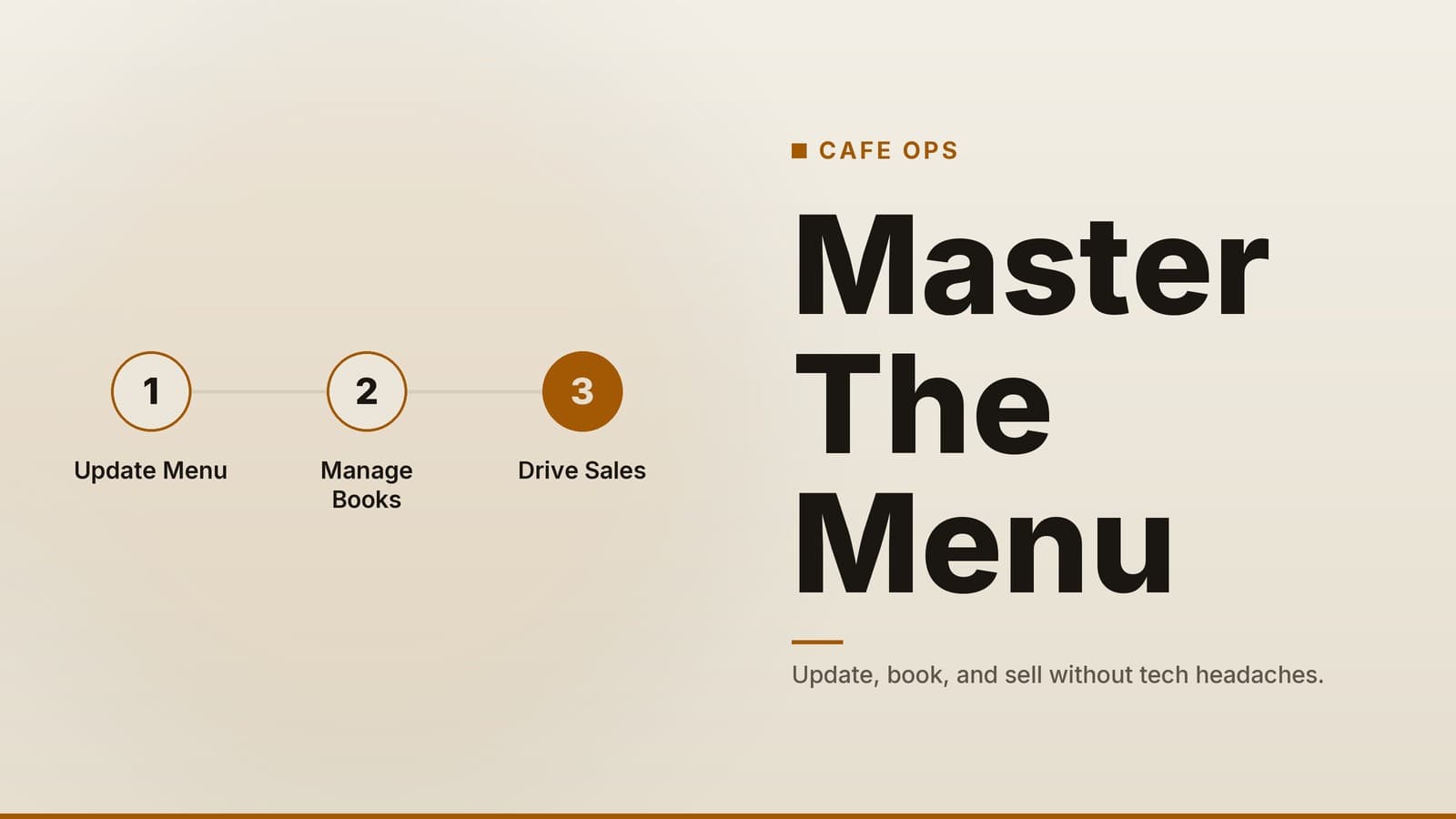
Instead of complex tables, follow these concise steps for common updates:
Adding a New Item
- Navigate to the Menu or Products section.
- Locate the button to create a new entry, often labelled “Add New,” “Create Item,” or similar, depending on your platform.
- Enter the name, price, and description.
- Upload a high‑quality photo.
- Save and then Publish (if your platform requires a separate publish step).
Removing or Pausing an Item
- Permanent Removal: Delete the item. Use this only for discontinued products.
- Temporary Unavailability (“86’d”): Do not delete the item. Instead, look for a status toggle to mark the item as unavailable. This keeps the layout intact and allows you to re‑enable the item quickly when stock returns.
Managing Photos
Image aspect ratios vary by theme and device. There is no universal standard that applies to all sites.
- Check the dimensions of your existing menu photos.
- Upload new images in the same format to prevent layout breaks.
- Always preview on mobile. Most customers view menus on phones, and a stretched image on a desktop may look fine but break on a smaller screen.
Practical Workflow
- Log in to the admin panel.
- Open the menu editor.
- Update items (add, edit, or toggle availability).
- Upload new photos if needed.
- Preview on both desktop and mobile views.
- Publish changes.
Note: The time required depends on the complexity of your menu and your familiarity with the platform. For a small café, updating three items might take less than 10 minutes, but this varies by user.
Managing Reservations and Online Orders
Efficiently handling bookings and orders prevents double‑booking and ensures your kitchen or staff are prepared for incoming customers.
Reservations
- View the Calendar: Most booking tools display a calendar view. Check for conflicts or no‑shows.
- Confirm or Cancel: Click the specific booking to change its status.
- Notifications: Many booking plugins send automatic confirmation emails; verify this in your settings. If you are using a custom setup, you may need to manually email customers.
- No‑Show Policies: You can set rules for cancellations (e.g., requiring a deposit or allowing cancellation up to 24 hours prior). Check that your policy follows any applicable regulations before enforcing it.
Online Orders
- Monitor the Order Queue: Check the “Orders” tab for new requests.
- Update Status: Move orders from “Pending” to “Preparing” to “Ready.”
- Notify Staff: If your system does not print tickets automatically, alert your kitchen or counter staff.
- Color Coding: You can use visual cues (like color tags) to help staff quickly identify order status. This is a workflow preference, not a standard feature, so configure it to match your team’s needs.
POS Integration
Many POS systems offer integrations with common e-commerce platforms.
- Go to Settings > Integrations or Inventory.
- Connect your POS account.
- Configure the sync settings to ensure inventory levels are updated between your online store and physical location. This helps avoid selling items that are out of stock in the shop.
Marketing and Loyalty: Do It Right
Your website is a marketing tool, but you must handle customer data responsibly.
Email Capture and Privacy
You can use pop‑ups or footer forms to collect emails for newsletters or promotions.
- Data‑Protection Requirements: Laws in many regions require consent before storing personal data. Consult with a legal professional to ensure your collection methods comply with local regulations.
- Tool Choice: Connect your website form to an email service provider (ESP) such as Mailchimp or ConvertKit. Check your ESP’s current pricing and features on their website, as plans vary by provider and usage.
Loyalty Programs
QR codes on receipts or tables can drive repeat visits.
- Choose a loyalty app that fits your budget and workflow.
- Generate a unique QR code for your café.
- Print and display the code near the counter.
- Train staff to encourage customers to scan the code.
Trade‑off: Loyalty apps often charge a monthly fee or a transaction‑based fee. Weigh this cost against the value of retaining regular customers.
Social Proof
Embedding a social‑media feed (Instagram or Facebook) in your footer can showcase recent posts.
- Benefit: Keeps content fresh without manual updates.
- Risk: If your social account is down or receives negative comments, it reflects on your website. Monitor this section regularly.
Maintenance and Troubleshooting Basics
Regular maintenance prevents small issues from becoming major outages.
Weekly Checklist
- Check Analytics: Review page views and order trends. Look for sudden drops that might indicate a technical issue.
- Test Forms: Submit a dummy reservation or contact form to ensure emails are arriving in the correct inbox (check spam).
- Mobile Preview: Open your site on a phone. Check that buttons are clickable and text is readable.
- Update Plugins/Themes: Outdated software can be a security risk.
- Step 1: Back up your site (most hosting providers offer automated backups; confirm yours).
- Step 2: Install updates one at a time.
- Step 3: Test the site after each update.
Troubleshooting Common Issues
| Issue | Likely Cause | Action |
|---|---|---|
| Form emails not arriving | Spam filters or SMTP settings | Check the junk folder. Verify SMTP settings in your email plugin. Test with a different email address. |
| Slow loading speeds | Large images or too many plugins | Compress images before uploading (use tools like TinyPNG). Remove unused plugins. Consider a CDN if traffic is high. |
| Broken layout | Recent plugin or theme update | Roll back the last update. Check the plugin’s support forum for known conflicts. |
| Login issues | Expired password or 2FA lockout | Use the “Forgot Password” link. If using Two‑Factor Authentication, ensure you have backup codes saved. |
When to Call a Developer:
If you encounter persistent errors, security breaches, or need custom features (like a unique booking flow), contact a professional. Do not attempt complex code changes if you are not technical; a small mistake can take the site offline.
How HeyGrowin can help
This section is promotional content.
HeyGrowin offers tools that let small cafés and other businesses create websites and automate orders, reservations, and marketing. The platform provides ready‑made components to get you up and running quickly, so you can focus on serving customers.
Learn more at HeyGrowin.
Frequently asked questions
How often should I update my cafe website?
Update your menu whenever items change, ideally within 24 hours. Check your analytics monthly to see what pages are popular and refresh your 'About' or 'Events' sections quarterly to keep the site feeling current.
Can I sell gift cards on my cafe website?
Yes, most website builders for restaurants have plugins or built-in features for digital gift cards. Check your platform's app store or settings for 'Gift Cards' to enable this feature.
What if I forget my website password?
Use the 'Forgot Password' link on the login page. If that doesn't work, contact the person who built your site or your hosting provider, as they may need to reset it from their end.