Maildun for Mac: Secure Email Setup for Small Teams
Learn how to set up Maildun for Mac to secure your team's email. Covers installation, configuration, and practical tips for small business owners.
Why Small Teams Need a Dedicated Mail Client
Email is the hub of most day‑to‑day business activity – booking appointments, sending invoices, answering customer questions, and coordinating with staff. While a browser‑based inbox is quick to open, a dedicated desktop client gives you a focused workspace, reliable offline access, and a single place for all your mail‑related settings.
| Feature | Desktop Client (e.g. Maildun) | Webmail |
|---|---|---|
| Offline access | Yes – cached messages can be read and drafted | No – requires a connection |
| Local data storage | Copies of messages stored on the device | Stored only on the provider’s servers |
| Notification control | Customizable per‑folder or per‑sender settings | Limited to browser or OS‑wide notifications |
| Security handling | Encryption handled by the client (SSL/TLS, local encryption) | Handled by the provider; client can’t enforce local encryption |
| Performance | Fast launch on a local machine, no page load overhead | Dependent on browser speed and network latency |
| Customization | Rules, keyboard shortcuts, multiple windows | Mostly UI‑based, limited scripting |
For a clinic manager juggling appointment confirmations, a restaurant owner handling supplier orders, or a shop owner managing customer enquiries, a desktop client keeps the inbox tidy and lets you work even when the internet is spotty.
Getting Started: Installation and Initial Setup
Downloading the Application
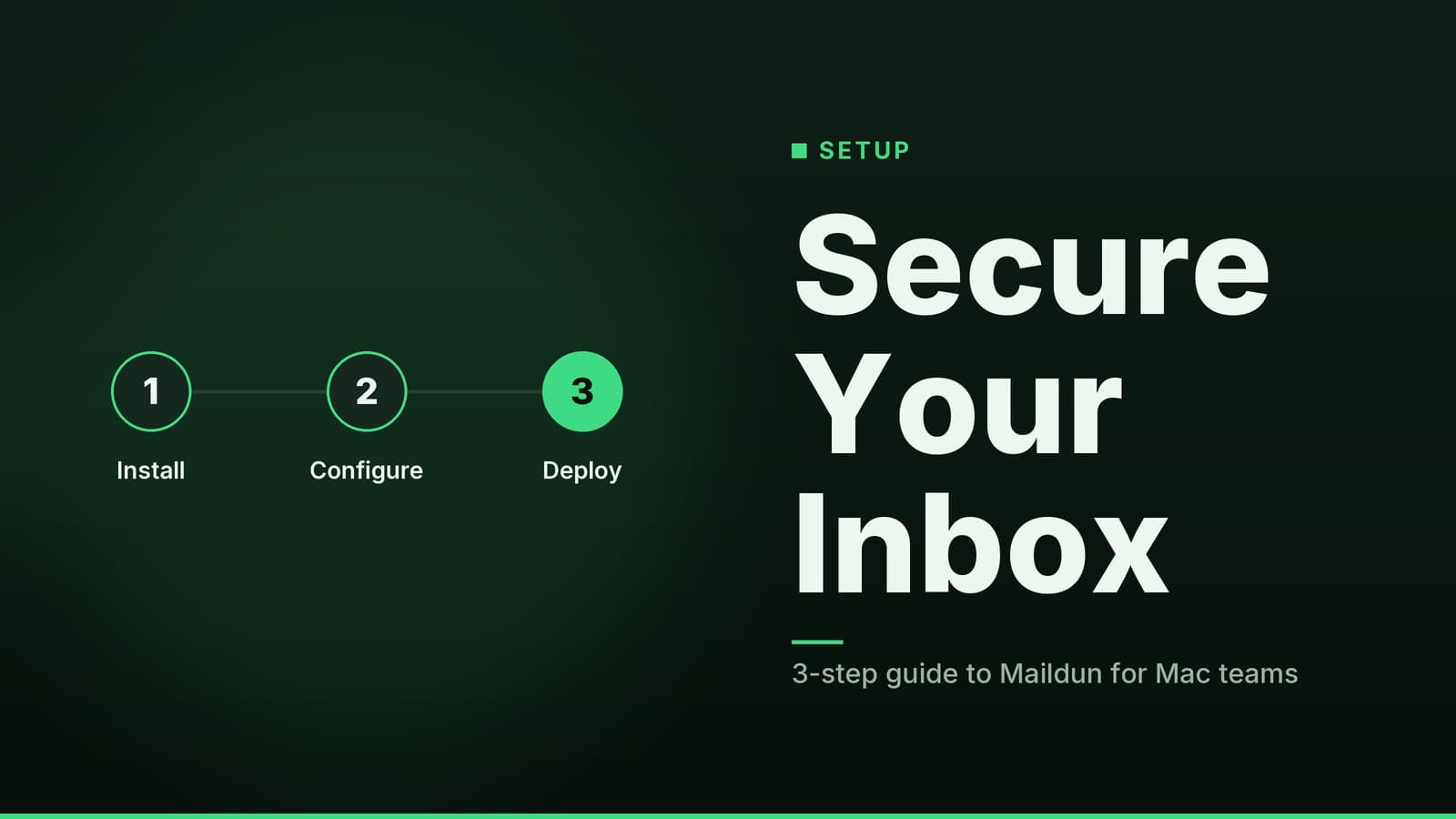
- Visit the official Maildun website to download the installer.
- Drag the icon to Applications and launch it.
- A setup wizard will appear; proceed with the prompts.
Adding Your Email Account
You’ll see two options:
| Option | What it does | When to use |
|---|---|---|
| Automatic detection | Enters address and password, then tries to discover server settings | Major providers (Gmail, Outlook, Yahoo) |
| Manual configuration | You supply incoming/outgoing server details | Custom domain or non‑standard provider |
Manual Configuration Checklist
| Setting | Typical Value | Notes |
|---|---|---|
| Incoming server | imap.yourdomain.com or mail.yourdomain.com | Ask your host or look in the provider’s help docs |
| Outgoing server | smtp.yourdomain.com | Same as above |
| Username | Full email address | you@yourbusiness.com |
| Password | App‑specific password if 2FA is enabled | Do not use your regular password if 2FA is on |
| Port | 993 for IMAP (SSL/TLS), 587 for SMTP (STARTTLS) | Avoid port 25 – often blocked |
| Encryption | SSL/TLS | Required by most providers |
Tip: If you’re using a Microsoft 365 or Google Workspace shared mailbox, add the mailbox as a separate account but ensure the user has the required permissions on the provider’s side.
Verifying Server Settings
If you’re using a custom domain, double‑check:
- MX records point to your mail host.
- Incoming/outgoing server addresses match the host’s documentation.
- Firewall allows outbound traffic on ports 587/465 (SMTP) and 993 (IMAP).
Configuring Maildun for Your Team’s Workflow
Shared Mailboxes
Add any shared address (info@, support@, sales@) as an additional account. Only users who have been granted access on the provider side can view and reply to those messages from their own Macs. This keeps the shared inbox in sync across all team members.
Organising with Folders and Labels
Use rules (filters) to move messages automatically:
| Rule | Example | Result |
|---|---|---|
| Sender | @client.com | Move to Client Inquiries |
| Subject contains “invoice” | Invoice #1234 | Move to Invoices |
| From internal staff | sales@yourbusiness.com | Move to Internal Notes |
Keep the main inbox for high‑priority items. A clean inbox reduces the time you spend hunting for messages.
Managing Notifications
Configure Maildun to alert you only for the folders that matter:
- Urgent: sound + banner
- Key clients: banner only
- Newsletters: silent
This prevents notification fatigue and ensures you notice the most important emails.
Keyboard Shortcuts
Many desktop mail clients support keyboard shortcuts to speed up navigation. Check Maildun’s help documentation or preferences menu for the specific key bindings assigned to actions like archiving, replying, or searching. Learning a few of these can cut the time you spend navigating menus by a few minutes each day.
Security Best Practices for Mac Users
These are general recommendations. If your business has specific regulatory requirements, consult a qualified professional.
2‑Factor Authentication (2FA)
Enable 2FA on every email account. A second factor (authenticator app, SMS, hardware token) blocks access even if a password is compromised.
Local Data Storage
Desktop mail clients typically cache messages locally to enable offline work. To protect that data:
- Enable FileVault (System Settings → Security & Privacy → FileVault).
- Use strong, unique passwords for the Mac login.
- Back up the Mac with Time Machine or a cloud‑based backup service.
Password Management
If your email provider does not support standard secure login methods (like OAuth2) for third-party apps, use an app-specific password. Store that password in a reputable password manager (1Password, Bitwarden, Dashlane). Avoid reusing passwords across services.
Software Updates
Keep macOS and Maildun up to date:
- macOS: System Settings → General → Software Update.
- Maildun: Check the app’s menu for “Check for updates”.
Updates often include security patches that close known vulnerabilities.
Backup and Archiving
- Webmail as the source of truth: All messages are stored on the provider’s servers. If your Mac fails, you can log in to the webmail from any device.
- Retention policies: Many jurisdictions require you to keep business records for a set period. Use your provider’s archiving features or export mailboxes regularly.
- Local backups: Store a copy of the Maildun data folder on an encrypted external drive or a cloud backup that meets your compliance needs.
Troubleshooting and Support
Common Issues and Fixes
| Problem | Likely Cause | Quick Fix |
|---|---|---|
| Emails not syncing | Incorrect IMAP server or port | Verify settings against the provider’s documentation |
| Slow performance | Large local mailbox | Archive old messages, compact the mailbox (if available) |
| Login errors | 2FA enabled but using regular password | Generate an app-specific password or use supported secure login methods |
| SMTP failures | Port 25 blocked | Switch to port 587 or 465 with STARTTLS/SSL |
Seeking Help
- Maildun Help Center: Search the knowledge base for your error message.
- Community forums: Other users may have posted solutions.
- Support ticket: Provide the exact error text, OS version, and Maildun version.
When to Switch
Consider moving to a different client if:
- You consistently encounter issues that are not resolved after several attempts.
- The client does not support a feature your workflow relies on (e.g., shared mailbox access, advanced rules).
- The learning curve is too steep for your team.
A short trial period (a week or two) is usually enough to decide.
Backup Strategies
Always keep a secondary access path:
- Webmail: Log in from any browser.
- External backup: Store the Maildun data folder on an encrypted external drive or a cloud service that meets your security standards.
- Export: Periodically export critical mailboxes to a .mbox file for long‑term storage.
How HeyGrowin can help
HeyGrowin builds practical digital tools for small businesses, including websites and automation workflows that integrate with your existing email and communication channels. We can help you set up a streamlined inbox workflow or build custom solutions that reduce manual email handling. Visit our website to explore our ready‑made tools and services.
Frequently asked questions
Is Maildun for Mac free to use?
Pricing details can change, so check the official Maildun website for current plans. Many email clients offer free tiers or one-time purchases, but verify what features are included in each tier.
Can I use Maildun with multiple email accounts?
Yes, most modern email clients allow you to add multiple accounts, including personal and work emails. This lets you manage all your inboxes in one place.
Does Maildun work with Microsoft 365 or Google Workspace?
Generally, yes, if it supports standard IMAP/SMTP or OAuth2 protocols. You may need to enable less secure app access or use app-specific passwords depending on your provider's security settings.