Step-by-Step Guide: Simple CRM for Real Estate Agents
A practical, no‑fuss guide that walks real estate agents through choosing, setting up and using a basic CRM to manage leads and clients.
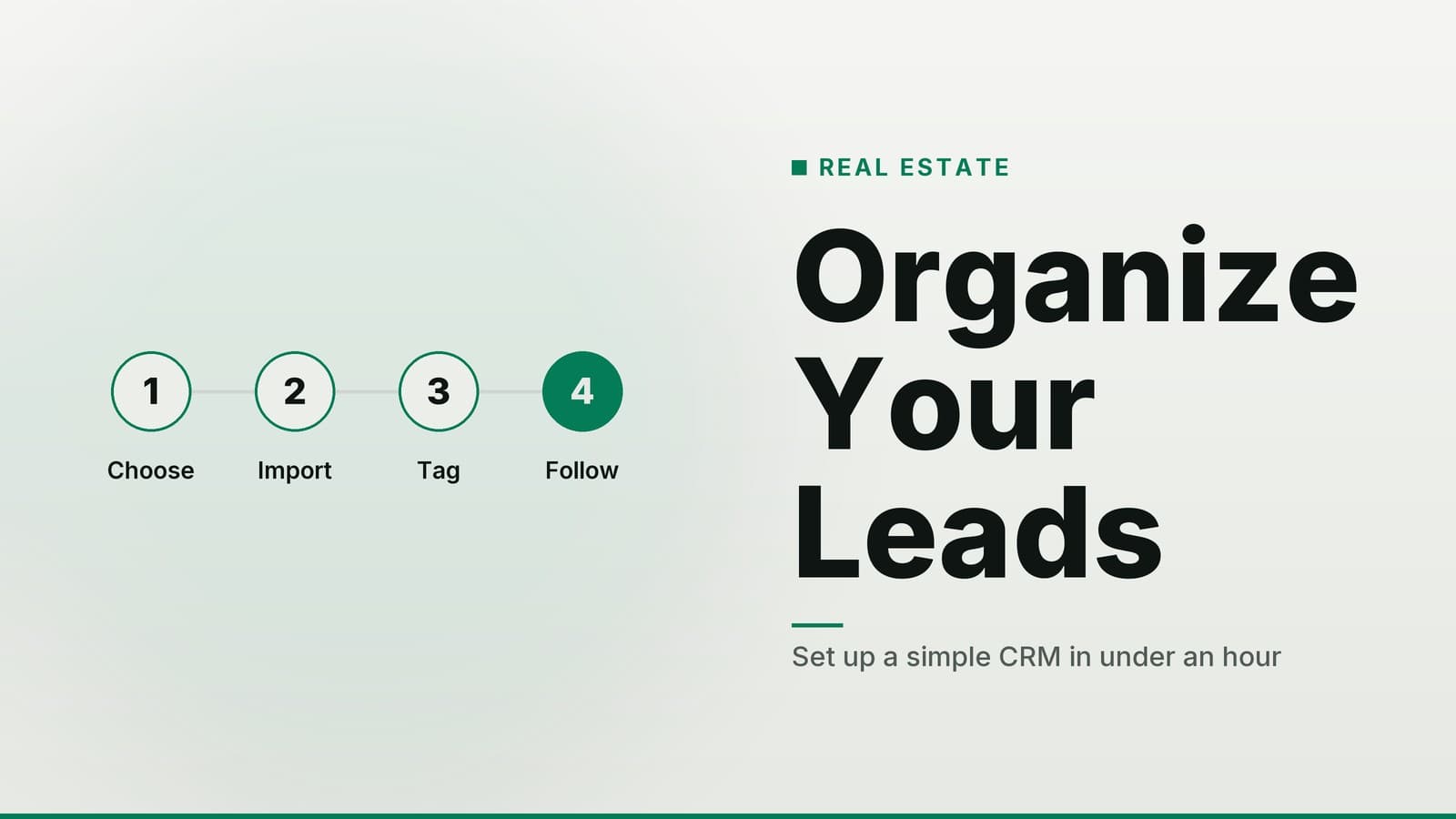
Table of Contents
- Why a CRM Matters for Real Estate
- Step 1: Define Your Core Needs
- Step 2: Pick a Tool That Fits
- Step 3: Set Up Your Data Structure
- Step 4: Import Existing Contacts
- Step 5: Automate Routine Tasks
- Step 6: Train Your Team
- Step 7: Review and Refine
- How HeyGrowin Can Help
Why a CRM Matters for Real Estate
A customer‑relationship management (CRM) system keeps all of your client information in one searchable place. For an agent or a small agency it means:
| What you gain | How it helps a real‑estate business |
|---|---|
| Centralised contact data | No more flipping between spreadsheets or paper notes. |
| Automatic reminders | Calls, viewings and contract deadlines are logged and flagged. |
| Visual progress tracking | A pipeline shows which listings are in negotiation, which need follow‑up, and which have closed. |
| Complete communication history | Every email, phone call and note is attached to the client record, giving context for future conversations. |
These benefits translate into fewer missed opportunities and a clearer picture of your sales funnel.
Step 1: Define Your Core Needs
1.1 Identify the data you must capture
| Field | Why it matters | Example values |
|---|---|---|
| Full name | Basic identification | “Jane Doe” |
| Phone & email | Contact channels | “(555) 123‑4567”, “jane@example.com” |
| Property type(s) of interest | Guides the search | Condo, townhouse, commercial |
| Budget range | Filters listings | “$250k–$350k” |
| Preferred neighbourhoods | Localises offers | “Downtown”, “Suburb A” |
1.2 Decide on essential features
- Contact list with searchable fields – you should be able to filter by any of the data points above.
- Task reminders – a simple way to schedule follow‑ups or viewings.
- Email integration – inbound and outbound messages should be logged automatically.
- Pipeline or stage view – a visual representation of the sales cycle (lead → viewing → offer → closed).
1.3 Budgeting for a CRM
Many providers offer free tiers that support a small number of users, often with basic contact management. If you need more advanced automation or custom fields, you will likely pay a small monthly fee per user. Check each vendor’s pricing page for the most recent information.
Step 2: Pick a Tool That Fits
When you’re not comfortable with code, look for a solution that advertises a “no‑code” or “drag‑and‑drop” workflow. Verify the following:
| Criterion | What to look for | Why it matters |
|---|---|---|
| Ease of use | Dashboard that can be navigated in a few clicks | Saves training time |
| Property‑specific storage | Ability to attach a short description or link to a listing on the contact record | Keeps all relevant data together |
| Email sync | Automatic attachment of inbound and outbound messages | Maintains a complete communication log |
Comparison Table
| Tool | Core Real‑Estate Features | Typical Pricing Model | Quick Take |
|---|---|---|---|
| HubSpot CRM | Contact management, email sync, basic pipeline | Free core; add‑ons for advanced marketing or sales | Good for agents who need simple lead tracking |
| Zoho CRM | Customisable fields, mobile app, lead scoring | Free for up to 3 users; paid plans for more users | Useful if you want mobile access and advanced scoring |
| Pipedrive | Visual pipeline, activity reminders, email integration | Free trial; paid plans start with a small monthly fee per user | Ideal for agents who prefer a board‑style view |
| Follow Up Boss | Real‑estate‑focused pipeline, built‑in email templates | Tiered plans; pricing varies by user count | Designed for agents who need industry‑specific workflows |
| Realvolve | Property‑centric modules, collaboration tools | Subscription per user; pricing depends on features | Best for agencies that need detailed property data and team collaboration |
Tip: Compare the free trial or demo of each tool before committing. Pay attention to what features are available in the free version versus the paid tiers.
Step 3: Set Up Your Data Structure
A consistent data structure prevents chaos later.
3.1 Create contact fields
| Field | Suggested type | Example |
|---|---|---|
Name | Text | “Jane Doe” |
Phone | Phone | “(555) 123‑4567” |
Email | “jane@example.com” | |
Property Type | Dropdown | Condo, townhouse, commercial |
Budget | Currency or dropdown | “$250k–$350k” |
3.2 Add status fields
| Status | Field type | Example |
|---|---|---|
Viewing Scheduled | Date picker | “2024‑10‑12” |
Offer Made | Checkbox | ✔︎ |
Closed – Won / Closed – Lost | Radio button | “Closed – Won” |
3.3 Use tags or labels
Group prospects by location, budget tier or lead source. For example:
- Location: “Downtown”, “Suburb A”
- Budget tier: “< $300k”, “$300k–$500k”
- Lead source: “Open House”, “Referral”
Consistent tagging makes filtering and reporting straightforward.
Step 4: Import Existing Contacts
Most agents begin with a spreadsheet of leads. Follow these steps:
- Export the spreadsheet to CSV.
- In the CRM’s import wizard, map each CSV column to the corresponding field you created.
- Run a test import with 5–10 rows. Verify that phone numbers, emails and custom fields appear correctly.
- Import the full file once the test looks good.
- Spot‑check a few records to confirm that notes, tags and status fields are populated.
If columns do not match, most CRMs allow you to re‑run the import or edit records manually.
Step 5: Automate Routine Tasks
Automation reduces manual effort and keeps data consistent.
5.1 Email templates
Draft short, reusable messages (e.g., “Thank you for the viewing”) and store them in the CRM. When you click the button, the email is sent and logged automatically.
5.2 Task reminders
Create a rule that generates a “Follow‑up call” task 48 hours after a viewing is logged. The task appears on the dashboard and can be assigned to any team member.
5.3 Workflow rules
Many CRMs let you move a contact to the next stage automatically. For instance, when the “Offer Made” checkbox is ticked, the contact can jump from “Viewing” to “Negotiation” in the pipeline.
Start small. Begin with one or two rules that address the biggest pain points. As you grow comfortable, add more triggers.
Step 6: Train Your Team
Even the best CRM fails if the team does not use it consistently.
6.1 Quick walkthrough
Hold a 30‑minute session that covers:
- The main dashboard
- Adding a new contact
- Finding tasks
Keep the session hands‑on and focused on the most common actions.
6.2 Logging calls and emails
Show the one‑click “Log Email” button and the “Add Call Note” field that appears after a phone conversation. Emphasise that every interaction should be recorded.
6.3 Updating status
Explain that moving a contact through the pipeline is how you’ll know which listings need attention. A stage change takes less than a second but provides valuable data for the whole office.
Create a one‑page cheat sheet with the most common actions and place it near the workstations. Encourage questions and schedule a brief refresher after the first month.
Step 7: Review and Refine
A CRM is a living system; regular check‑ins keep it useful.
| Frequency | What to review | Why |
|---|---|---|
| 24 h after a new inquiry | Does it appear in the pipeline? | Detect capture issues early |
| Monthly | Field names and dropdown options | Improve consistency |
| Quarterly | Archive contacts untouched for 6 months | Keep reports fast and data tidy |
Over time you’ll spot patterns—perhaps a particular neighbourhood generates many “Viewing Scheduled” entries but few offers. Use that insight to tweak marketing or pricing. If you need help targeting leads, see our guide on Low‑Cost SEO for Small Real Estate Agencies.
How HeyGrowin Can Help
HeyGrowin can set up a ready‑made CRM tailored to your agency, integrate it with your email and website, and add simple automation so you can focus on closing deals. Visit HeyGrowin to explore pre‑built tools you can start using today.
Risk Disclaimer
A CRM will not automatically replace every manual process in your workflow. Some tasks—such as complex legal document handling or in‑person negotiations—still require human oversight. Always test new features in a sandbox environment before rolling them out company‑wide.
Frequently asked questions
Can I start with a free CRM?
Yes, most free tiers allow basic contact management and email sync for a small team.
Do I need a developer to set up the CRM?
No, the setup steps are designed for non‑technical users; most tools offer guided wizards.
How often should I back up my CRM data?
A monthly export to CSV is a simple way to keep a copy of all contacts and notes.