Best POS System for Small Restaurants 2024 Guide
A practical comparison of the top POS systems for small restaurants, with step‑by‑step buying tips and real‑world examples.
Why a POS System Matters for Your Restaurant
Running a small restaurant means juggling orders, inventory, staff schedules, and cash. A point-of-sale (POS) system is the software and hardware combination that records every transaction and updates your stock levels automatically. Unlike a simple payment terminal that only processes card swipes, a full POS system acts as the central hub for your operations.
For a small operator, the primary value is visibility. When a server rings a table, the system records the sale, deducts the ingredients from your inventory, and logs the staff member’s activity. This eliminates the need to reconcile separate spreadsheets at the end of the night. While specific financial outcomes vary by business model, this automation reduces the manual effort required to track where money is coming from and going.
The benefits extend beyond basic record-keeping. By tracking which dishes sell most and which ingredients are wasted, you gain data that can inform menu decisions. You can identify high-margin items to promote or low-performing dishes to retire based on actual sales history rather than intuition. This applies to various formats, from a high-turnover grab-and-go café to a full-service bistro, though the specific features you need will differ.
If you are still using a cash register and a paper ledger, you are missing out on the operational data that helps manage costs and staffing. For a deeper dive on the difference between a full POS and a simple payment terminal, see our article on POS System vs Payment Terminal: Which Fits Your Small Business?.
Key Features Every Small Restaurant Needs
Not every POS is built for a full-service restaurant. When evaluating a vendor, ask specifically how each feature works in practice. Below are the core capabilities most small operators need, broken down by function.
Touchscreen interface for quick orders
A responsive, tablet-style screen allows servers to tap items and add customizations (such as "no onions") quickly. Look for a drag-and-drop menu editor so you can rearrange dishes or update prices without needing IT support. This speed is critical during peak hours to reduce order errors and wait times.
Integrated payment processing
Ideally, the POS bundles a card reader and supports contactless wallets like Apple Pay and Google Pay. Note that some providers charge a per-transaction fee in addition to the monthly subscription. Confirm the exact fee structure before signing up, as this can significantly impact your net profit per sale.
Real-time inventory management
When a dish is sold, the system should deduct the corresponding ingredients from your stock count. Set low-stock thresholds so you receive an alert before you run out of key items like cheese or coffee beans. This helps prevent last-minute emergency orders from suppliers, which often come with premium pricing.
Table management and reservation sync
A visual floor plan shows which tables are occupied, reserved, or ready to seat. If you already use an online reservation platform, the POS should sync automatically with it to avoid double-bookings. This ensures your front-of-house staff has an accurate view of the dining room at a glance.
Employee scheduling and time-clock integration
Servers and kitchen staff can clock in and out from the same device they use to take orders. Some systems allow you to publish weekly schedules that staff can view on their phones. This integration simplifies payroll preparation by linking worked hours directly to the staff member’s profile.
Sales reporting and analytics
At a minimum, you need a daily sales summary. More useful are reports that break down sales by server, shift, or menu category. Look for export options (such as CSV or Excel) that allow you to feed this data into your accounting software for tax and financial reporting.
For a concise list of the features you truly need, see Restaurant POS System: 5 Features You Actually Need.
Top POS Options for Small Restaurants
Below is a snapshot of five solutions that frequently appear in small-restaurant buyer guides. Prices and exact feature sets change frequently, so treat the table as a starting point and verify details on each vendor’s current website.
| Vendor | Deployment Model | Core Strength | Pricing Structure | Notable Limits |
|---|---|---|---|---|
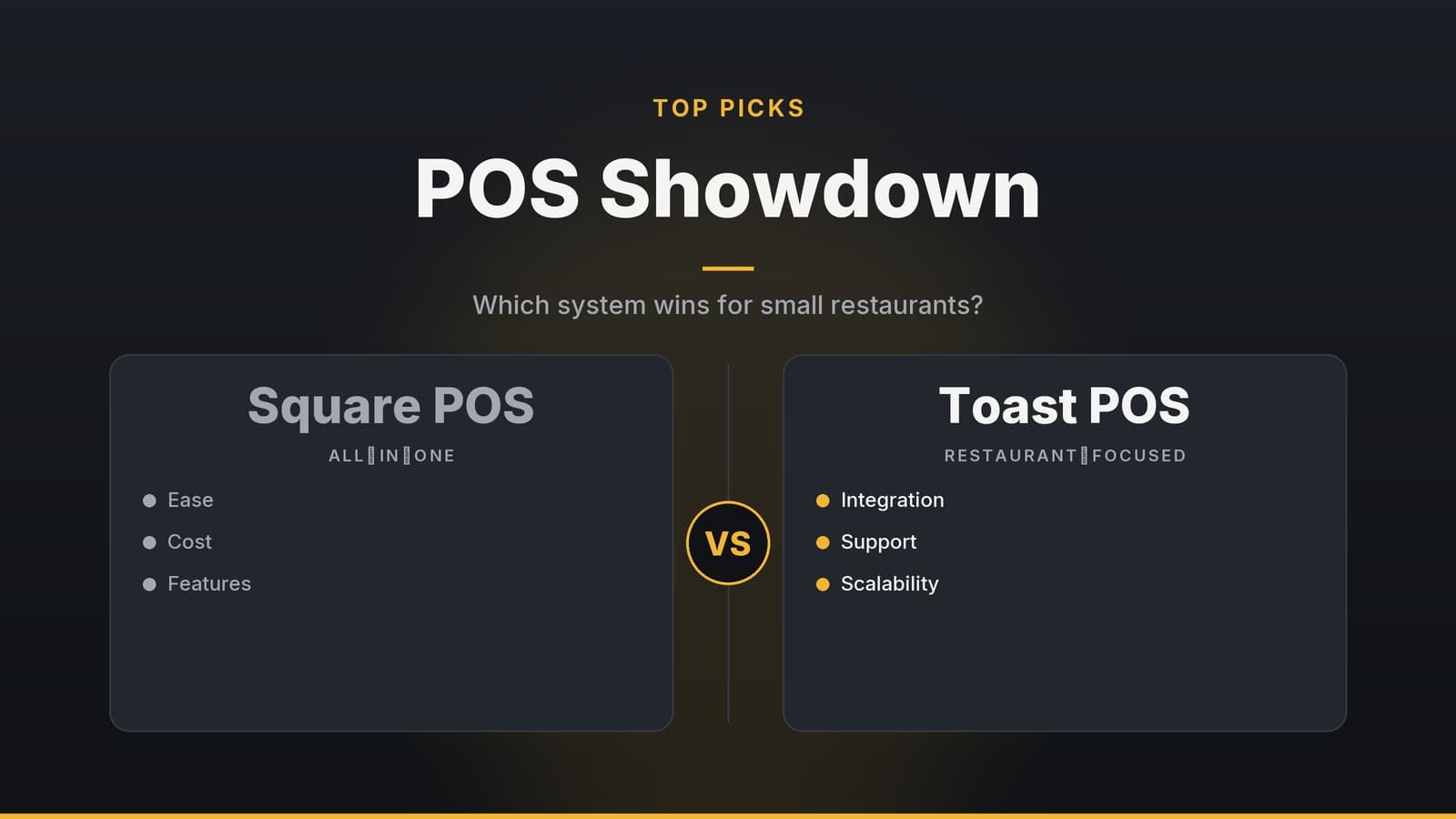
| Square for Restaurants | Cloud-based | Simple UI, low entry cost, strong card-present processing | Per-terminal monthly fee + optional add-ons | No built-in kitchen display; may need third-party hardware for table management |
| Lightspeed Restaurant | Cloud-based | All-in-one with kitchen display, loyalty, and multi-location support | Per-terminal monthly fee; higher tiers include more reporting | Higher upfront cost; onboarding may require a consultant |
| Toast POS | Cloud-based (hardware supplied) | Restaurant-specific UI, robust kitchen display, native delivery integration | Monthly subscription per seat; processing fees often included | Requires Toast hardware; limited to specific markets |
| Revel Systems | Hybrid (cloud + on-premise) | Scalable for high-volume diners, deep analytics, enterprise-grade security | Per-terminal fee plus optional modules | Longer contract terms; implementation can be complex for very small shops |
| Shopify POS | Cloud-based | Seamless link to an online store, easy for cafés that sell merchandise | Per-terminal fee; free basic plan for low-volume use | Limited kitchen features; inventory alerts are basic |
Quick comparison of fit
| Business Type | Best Overall Fit | Reason |
|---|---|---|
| Quick-service café (high turnover, limited menu) | Square for Restaurants | Low cost, fast UI, no need for extensive kitchen screens |
| Mid-size bistro with loyalty program | Lightspeed Restaurant | Built-in loyalty and robust reporting without extra plugins |
| Full-service restaurant that does delivery | Toast POS | Delivery integration and strong kitchen workflow |
| High-volume diner with multiple shifts | Revel Systems | Advanced labor analytics and scalability |
| Small café that also sells online merch | Shopify POS | Direct sync with Shopify online store, simple inventory |
If you already run a small café and are curious about a POS that works hand-in-hand with an online shop, our Best POS Software for Cafés: Guide for Small Business Owners walks through the pros and cons of each option in more detail.
How to Choose the Right System for Your Business
Selecting a POS is about matching the tool to your specific workflow. Follow these steps to avoid costly mis-fits.
List your core needs
- Do you need ultra-fast order entry for a take-away window?
- Is inventory control for perishable items (e.g., fresh fish) a priority?
- How deep do you want reporting (daily snapshots vs. detailed profit-margin analysis)?
Compare pricing structures
- Most providers charge a per-terminal monthly fee plus a transaction surcharge.
- Ask whether the fee includes the card reader or if that is a separate hardware cost.
- Look for additional fees for software updates, support tickets, or extra users.
- Note: For detailed financial planning, consult your accountant to understand how these costs affect your cash flow.
Check hardware compatibility
- Does the vendor supply its own tablet or terminal, or can you use an existing iPad/Android device?
- If you need a kitchen display screen (KDS), verify whether it is bundled or sold separately.
Test the user interface
- Request a live demo or a trial period.
- Have a server and a kitchen staff member walk through a typical rush to see how intuitive the flow feels.
Consider support options
- 24/7 phone or chat support is valuable if you run late-night service.
- Some vendors have local resellers who can provide on-site training; this can speed up adoption.
Plan for growth
- Will the system let you add more terminals, tables, or a second location without a new contract?
- Look for modular add-ons (e.g., loyalty, advanced analytics) that you can enable later.
A quick scoring worksheet can help you compare vendors side by side. Assign a weight to each criterion (e.g., "inventory alerts" might be 20% of the total score) and total the points after you’ve tried the demos.
Implementation Timeline
A smooth rollout reduces the risk of service interruptions and staff frustration. Use this timeline as a guide from decision to go-live.
| Phase | Action | Tips |
|---|---|---|
| Week 1: Preparation | Define scope and budget. Calculate the monthly cost of the POS, hardware, and any transaction fees. | Keep a simple spreadsheet of costs. Consult your accountant for financial planning. |
| Week 2: Selection | Compare vendors. Schedule live walkthroughs with sales reps or local partners. | Bring at least one front-of-house and one back-of-house employee to the demo. |
| Week 3: Integration | Verify payment and data links. Confirm the POS works with your current merchant account or plan to switch. | Check if the POS offers lower processing rates, but weigh this against contract lock-in. |
| Week 4: Training | Train staff. Run a half-day session for servers, then a separate session for kitchen staff on the KDS. | Record short video tutorials for future hires. |
| Week 5: Setup | Configure inventory. Input starter inventory levels and define "low-stock" percentages for key ingredients. | Start with the top 10 high-turn items; you can expand later. |
| Week 6: Soft Launch | Run a limited service. Open only for lunch or a limited dinner shift while monitoring errors and speed. | Use a simple feedback form for staff to note hiccups. |
| Week 7: Go Live | Monitor and adjust. Compare the first week’s POS data with previous manual records to spot discrepancies. | Flag any large variances for immediate investigation. |
| Ongoing | Maintenance. Set a monthly reminder for system backups and to apply vendor updates. | Keep a log of update dates and any issues that arise. |
Following this timeline helps you transition from a paper-based system to a digital POS without disrupting service.
How HeyGrowin can help
HeyGrowin builds custom software that can plug into the POS you choose—whether you need a simple booking widget for reservations or an inventory dashboard that pulls data from your sales system. Our ready-made tools let you start automating today, and our team can develop a bespoke integration if you have unique workflow requirements. Learn more at https://heygrow.in.
Frequently asked questions
Do I need a dedicated hardware terminal for a POS system?
Many cloud‑based POS solutions let you use a tablet or smartphone, but you’ll still need a card reader and a receipt printer. Check the vendor’s hardware list before buying.
Can I switch POS systems later if my business grows?
Yes, most POS vendors allow you to add more terminals or upgrade plans. However, migrating data can be time‑consuming, so plan the transition during a low‑traffic period.