Quotation software: how to use it to win more sales
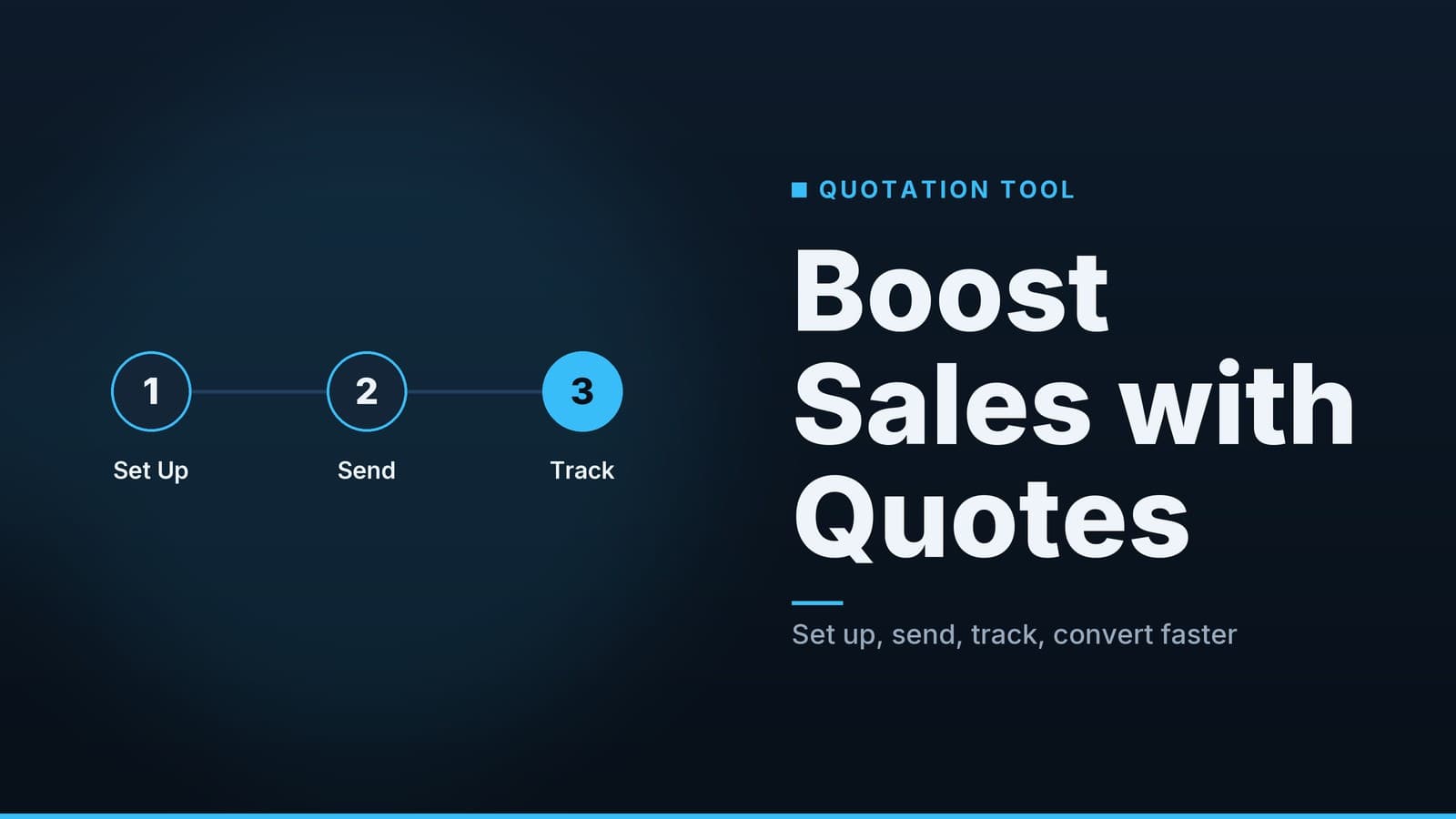
Learn step‑by‑step how to set up, send and track quotations with software to boost your conversion rate.
Why a quotation tool matters
A quotation tool (sometimes called a quote generator or quotation software) is a web‑based application that lets you create, send and track price proposals without manual spreadsheet work. For busy SMB owners the biggest benefits are:
| Benefit | What it looks like in practice |
|---|---|
| Fewer manual errors | Prices, tax rates and discounts are pulled automatically from a central catalogue, so the total the client sees matches what you charge. |
| Consistent pricing across staff | Every salesperson selects items from the same catalogue and uses the same default terms, eliminating “my colleague gave a lower price” disputes. |
| Professional presentation | Branded headers, line‑item breakdowns and embedded terms make the quote feel like a formal proposal, which speeds up client response. |
| Faster cash flow | When a client can accept the quote with one click, the order can be recorded in your POS or invoicing system immediately, cutting the gap between proposal and payment. |
Choosing the right quotation tool
Not every tool fits every business. Use the checklist below to identify the features you need, then compare a few popular options. The comparison table shows three representative vendors (Vendor A, Vendor B, Vendor C) that cover low‑, mid‑ and higher‑price ranges; check each vendor’s current pricing page for exact costs.
| Feature | Why it matters | Vendor A (low‑cost) | Vendor B (mid‑range) | Vendor C (higher‑tier) |
|---|---|---|---|---|
| Integration with POS / accounting | Avoid double‑entry; accepted quotes should flow straight into sales or inventory records. | Offers integration options and allows data export for manual import; check current compatibility. | Offers native connectors for common accounting and POS systems; availability may depend on the plan. | Provides API access and pre‑built connectors for larger systems; refer to documentation for supported integrations. |
| Custom templates & branding | Your logo, colour scheme and legal footer appear on every quote without extra editing. | Basic template editor with a modest set of saved designs. | Drag‑and‑drop builder that supports multiple saved layouts and conditional sections. | Advanced designer with brand‑style libraries, multi‑language support and PDF compliance options. |
| Bulk emailing & merge fields | Send a price list to many prospects in minutes and personalize each email. | CSV import and simple merge tags; no built‑in scheduling. | Includes bulk‑send features such as scheduling, open tracking and per‑recipient merge tags (exact capabilities may vary by plan). | Provides an enterprise‑grade campaign manager with segmentation, testing and deliverability reporting (subject to plan). |
| Pricing model | Align cost with team size and quote volume. | Pricing varies by plan and usage volume; check the vendor’s current page for details. | Pricing varies by plan and usage volume; check the vendor’s current page for details. | Custom enterprise pricing; typically based on user count and feature set. |
| Mobile access | Salespeople on the shop floor or in the field need to create or edit quotes on a phone or tablet. | Accessible via a responsive web interface. | Offers dedicated mobile apps; check if offline draft mode is included in your plan. | Provides native mobile apps with expanded field capabilities; verify the exact feature set with the vendor. |
| Analytics & tracking | Know whether a client opened the quote, which items they viewed, and how long they took to accept. | Basic email‑open notifications. | Dashboard shows open rate, click‑through rate (CTR) and average time‑to‑accept. | Real‑time funnel analytics, conversion‑by‑segment and exportable reports. |
| Approval workflow | Keep margin control by requiring manager sign‑off on large discounts. | No built‑in workflow; manual email approval required. | Configurable approval chain (one or two levels) with an audit trail. | Role‑based approval matrix, conditional rules and digital signatures. |
| Security & compliance | Protect client data and meet industry standards. | TLS encryption; data stored in a single region. | Data centres meet recognized security standards; optional password‑protected quote links. | Advanced security controls, detailed permission management and compliance certifications (verify specifics with the vendor). |
How to use the table
- Prioritise the features that matter most for your business (e.g., integration vs. mobile access).
- Short‑list the vendors that meet those priorities.
- Start a free trial (if offered) and run a quick test of the integration you need most – for example, create a quote and see whether it appears automatically in your accounting software or POS.
Setting up your first quotation workflow
Below is a step‑by‑step guide that works for most SMBs. Adjust the details to match your industry.
1. Build a product/service catalogue
| Action | Tips |
|---|---|
| List every sellable item or service | Include a base price, applicable tax code, and any default discount (e.g., “5 % off for orders over 10 units”). |
| Group items logically | Use categories such as “Consultation”, “Menu – Appetisers”, “Retail – Accessories”. This makes it easier to filter when creating a quote. |
| Add custom fields if required | For a clinic you might add a “Procedure Code” field; for a logistics firm a “Weight Class” field. Keep the field names short and map them to your downstream system later. |
2. Define customer groups and default terms
| Group example | Typical default settings |
|---|---|
| Corporate clients | Net 30 payment, 0 % discount, tax‑exempt if applicable. |
| Walk‑in / retail | Pay‑on‑delivery, no discount, standard tax. |
| Subscription customers | Monthly recurring, auto‑renewal flag. |
Assign each new contact to a group automatically (most tools let you set rules based on email domain or source).
3. Design a branded template
- Open the template editor and upload your logo (PNG / SVG).
- Choose a colour palette that matches your brand guidelines.
- Insert merge fields for:
- Customer name
- Quote number (auto‑generated)
- Issue date & expiry date (e.g., “valid for 30 days”)
- Payment terms
- Add a “Terms & Conditions” block that pulls from a pre‑written text file – you only need to edit it once.
- Save the template and preview it as a PDF to ensure layout looks correct on both desktop and mobile screens.
4. Run a test quote
Create a dummy quote using a real product, apply a discount, and send it to your own email address. Verify that:
- Prices, tax and discount calculations are correct.
- The PDF matches the preview.
- The tracking link records an “open” event in the analytics dashboard.
Fix any issues before you start sending quotes to actual prospects.
5. (Optional) Set up an approval workflow
If you need a manager to review discounts above a certain threshold (e.g., > 10 %), enable the tool’s approval rule:
- Trigger – Discount > 10 %
- Approver – Finance manager’s email
- Outcome – Quote stays in “Pending Approval” status until the manager clicks “Approve” or “Reject”.
This step protects margins while keeping the sales process fast.
Sending, tracking and following up
Sending options
| Channel | When to use it | How the tool supports it |
|---|---|---|
| Email with tracked link | Standard proposals | The platform generates a unique URL; you can embed it in a ready‑made email template. |
| Secure client portal | High‑value or confidential proposals | Password‑protect the quote link; the client logs in to view and accept. |
| SMS reminder | Clients who prefer text | If you already use a texting service, the quotation tool can trigger an automated SMS with the quote link. See our guide on Use Phonable Texting to Capture Missed Calls and Boost Sales. |
Tracking metrics you should monitor
| KPI | Why it matters | Typical benchmark (industry‑wide) |
|---|---|---|
| Open rate | Indicates whether the email reached the client’s inbox. | Benchmarks vary significantly by industry and list quality; track your own baseline over time. |
| Click‑through rate (CTR) | Shows interest in specific line items or the “Accept” button. | Benchmarks vary significantly by industry and offer type; track your own baseline over time. |
| Average time‑to‑accept | Measures how quickly a prospect moves from quote to order. | Varies by deal size and complexity; shorter for low‑ticket items. |
| Conversion rate | Percentage of sent quotes that become paid orders. | Varies by industry and discount level; track your own baseline over time. |
Set up dashboard widgets for these KPIs and schedule a weekly review. If the open rate is lower than expected, consider testing a different subject line or sender name. If the conversion rate is low, look at the discount levels or the clarity of your terms.
Automated follow‑up rules
Most tools let you create simple automation such as:
- Reminder #1 – 48 hours after the quote is opened but not accepted.
- Reminder #2 – 5 days after the first reminder if still pending.
- Escalation – Notify a manager if a high‑value quote remains open for more than 7 days.
These automations keep the sales cycle moving without requiring manual check‑ins.
Turning an accepted quote into an order
- Accept button – Place a button that redirects to your preferred payment gateway (Stripe, PayPal, local bank link) or to a custom order form on your website. For service‑based businesses the button can open a booking calendar.
- Status change – When the client clicks “Accept,” the quotation tool automatically updates the quote status to “Won.”
- Push to POS / invoicing – With a proper integration, the line items are transferred to your POS, inventory system, or invoicing software, creating a sales order or invoice instantly.
- Generate the first invoice – Some platforms can convert the accepted quote into a pre‑filled invoice, preserving the same line items, taxes and payment terms.
- Review analytics – After the order closes, record the conversion data (discount level, product mix, customer segment) in the tool’s analytics dashboard. Use this data to refine pricing or to identify high‑performing product bundles.
Practical tips for specific business types
| Business type | Quote customisation ideas | Example workflow |
|---|---|---|
| Clinic / health practice | Add fields for “Procedure Code” or “Insurance Provider” (use generic labels). Include a link to a downloadable treatment plan PDF. | Client receives quote → clicks “Book Appointment” button → calendar opens → appointment confirmed → quote status becomes “Won” and is pushed to the practice’s billing software. |
| Restaurant (including catering) | Create seasonal menu groups (e.g., “Summer Specials”) and catering bundles (e.g., “5‑course dinner for 20 guests”). Add a refundable deposit field. | Sales rep selects “Catering Package” → system auto‑calculates per‑head price and service charge → client reviews quote → clicks “Pay Deposit” → deposit collected via Stripe, remaining balance invoiced after event. |
| Retail shop | Define product kits (e.g., “Starter Kit – Shirt + Belt”) with automatic bundle discount. Set tiered volume discounts (10 % off 5‑10 units, 15 % off 11+). | Customer requests a quote for 12 shirts → system applies 15 % tier discount → quote sent with clear savings breakdown → client accepts → inventory reduced automatically. |
| Service firm (coaching, agency, logistics) | Use time‑based rates (hourly, daily) and milestone payment structures (e.g., 30 % upfront, 40 % mid‑project, 30 % on delivery). Include a free‑text “Scope notes” field to outline deliverables. | Coach creates a 10‑hour package → system shows projected total → client accepts → payment link for 30 % upfront sent → remaining milestones invoiced automatically as work progresses. |
Putting it all together – a sample end‑to‑end flow
- Lead capture – A prospect fills a web form or walks in; their details are added to your CRM.
- Create quote – Salesperson clicks “New Quote” inside the quotation tool; the client’s contact fields auto‑populate.
- Select items – Choose products/services from the catalogue; the tool calculates tax and any applicable discount.
- Choose template – The appropriate brand‑consistent template loads (clinic, restaurant, retail, service).
- Send – Quote is emailed with a tracked link; an optional SMS reminder is scheduled.
- Monitor – Dashboard shows open rate and CTR; if no activity after 48 hours, an automated reminder is sent.
- Client accepts – Clicks “Accept,” which redirects to payment or booking.
- Status update – Quote status changes to “Won”; line items flow into POS/invoicing system; first invoice is generated automatically.
By following this loop, you eliminate manual copy‑pasting, reduce the chance of pricing errors, and gain visibility into every step of the sales process.
Quick‑action checklist for SMB owners
| ✅ Action | How to do it |
|---|---|
| Define the catalogue | List every item/service, set base price, tax code, default discounts. |
| Set up customer groups | Create at least two groups (e.g., “Retail” and “Corporate”) with distinct payment terms. |
| Pick a template | Use the built‑in editor to add logo, colours, and required merge fields. |
| Test a dummy quote | Send it to yourself, verify calculations and branding. |
| Enable integration | Connect the tool to your accounting software or POS; run a test sync. |
| Configure tracking & KPIs | Activate open‑rate and click‑through tracking; add “average time‑to‑accept” to your dashboard. |
| Create follow‑up automation | Set a 48‑hour reminder for unopened quotes and a second reminder for pending acceptance. |
| Train staff | Run a short walkthrough for salespeople on creating and sending quotes. |
| Review weekly | Look at conversion rate, open rate, and average time‑to‑accept; adjust discount levels or template wording as needed. |
How HeyGrowin can help
HeyGrowin offers a quotation module that can connect with many POS, accounting and booking platforms; verify compatibility with the specific systems you use. The module provides core capabilities such as template design, mobile access, analytics dashboards and optional approval workflows. For businesses already using HeyGrowin’s CRM, billing or inventory features, the quotation tool fits in without extra data‑entry steps.
Frequently asked questions
Do I need a separate CRM to use quotation software?
Not necessarily – many quotation tools include basic customer records, but you can link them to a full‑fledged CRM if you already use one.
Can I use the same software for invoices?
Yes, most quotation platforms allow you to convert a quote into an invoice with a single click, but confirm this feature on the vendor’s site.