Cafe Automation Best Practices for Small Shops
Practical steps to automate ordering, payments, inventory and staff scheduling in a café without tech overwhelm.
Why Automate Your Café?
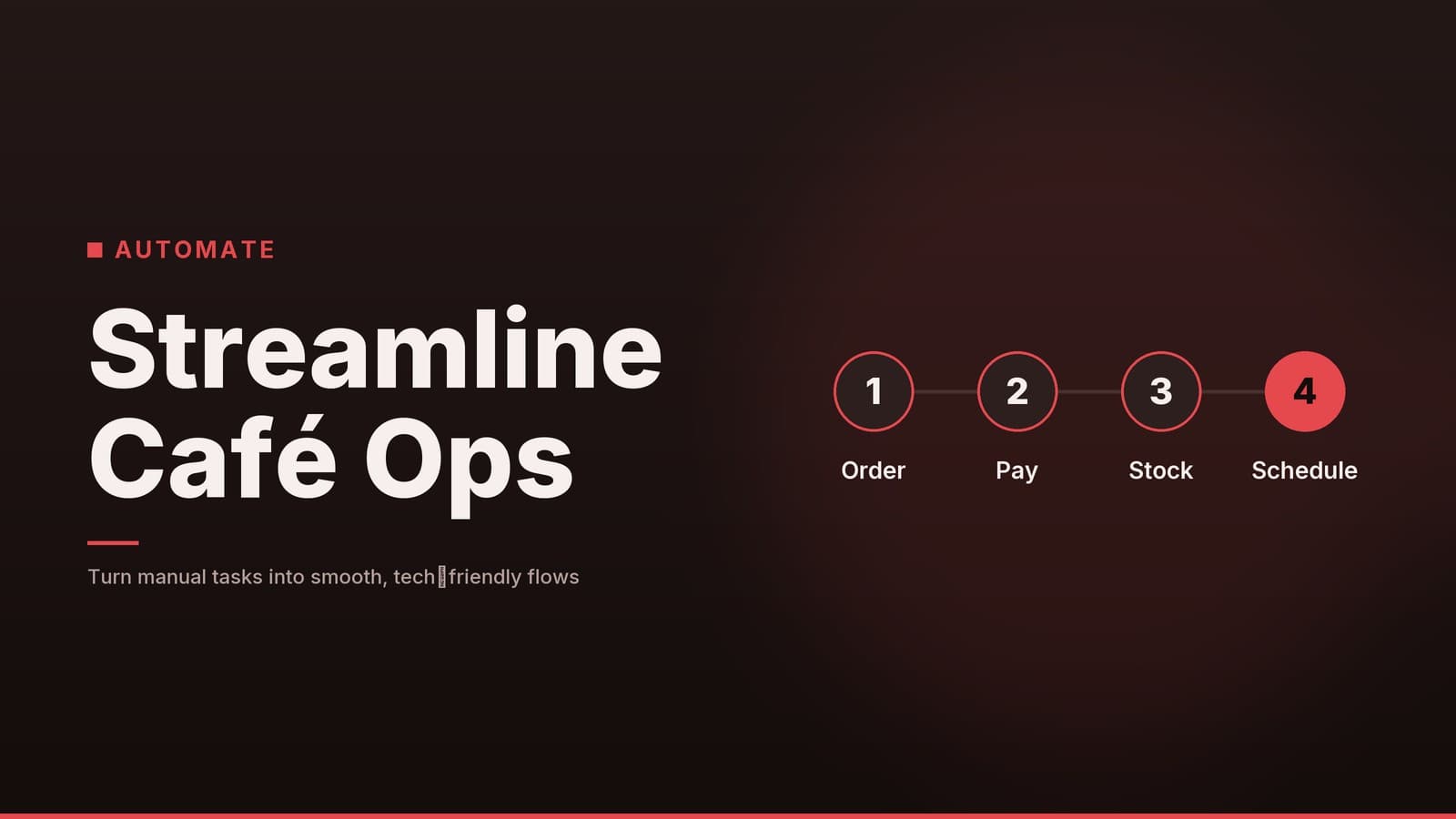
Running a café means constantly shifting between taking orders, handling payments, keeping track of stock, and managing staff rosters. Automation can take the repetitive parts of those tasks off your plate so you can spend more time on the customer experience that keeps people coming back.
- Free staff for service – When a tablet or mobile device records the order, baristas can focus on greeting guests and crafting drinks instead of writing down tickets.
- Cut ordering and inventory mistakes – A digital menu that updates in real time eliminates the risk of selling an out‑of‑stock item. Linking sales to inventory automatically adjusts stock levels, reducing the need for manual counts.
- Speed up cash flow – Contactless or chip‑card readers finish a transaction in seconds, which shortens the queue and reduces the amount of cash you need to handle at the end of the day.
Automation isn’t a magic bullet, but it can free up both people and money for what really matters: a great cup of coffee and a friendly smile.
Key Areas to Automate (and What to Look for)
| Area | Typical Automation | Technical Details to Consider |
|---|---|---|
| Order taking | Tablet‑based POS, mobile app, or customer‑facing kiosk | • Runs on iOS/Android or Windows tablets • API access for future integrations (e.g., loyalty programs) • Offline mode for occasional internet outages |
| Payments | Contactless card, QR‑code, or mobile‑wallet readers | • PCI‑DSS‑validated hardware • EMV chip support for card‑present transactions • Ability to tokenise card data for recurring payments |
| Inventory | Real‑time stock tracking, low‑stock alerts, auto‑reorder | • Barcode scanner or QR‑code reader for fast stock entry • Sync frequency (real‑time vs. batch) • API connectivity for linking to accounting or supplier systems |
| Staff scheduling | Cloud‑based roster app with shift‑swap feature | • Role‑based permissions (manager vs. staff) • Integration with POS to log clock‑ins automatically • Export to payroll software (e.g., Xero, QuickBooks) |
Order‑Taking Hardware & Integration
A tablet POS typically needs a sturdy stand, a receipt printer, and a kitchen display (or a simple screen in the back). Look for devices that support reliable power delivery (e.g., USB‑C or a robust charger) and a stable Wi‑Fi connection; many modern routers offer a 5 GHz band that can help reduce latency, but verify the specifications of the tablet you choose. If you want a customer‑facing kiosk, make sure the screen is touch‑enabled and the enclosure meets local health‑department durability standards.
Payments and Data Security
When you accept card payments, the hardware must be PCI‑DSS compliant. Most reputable POS vendors bundle a certified card reader that encrypts data at the point of capture, reducing liability for you. If you store any payment‑related data (e.g., for loyalty rewards), look for software that uses tokenisation and strong encryption—confirm the exact methods with the vendor and ask for evidence of regular third‑party security audits.
Inventory Tracking Mechanics
For a small café, a full barcode system may be unnecessary, but a simple QR‑code on each ingredient container can speed up stock‑taking. The POS should be able to sync sales data to the inventory module automatically; the exact method (API call, webhook, etc.) varies by provider, so check the documentation for the integration details. Set reorder thresholds based on your average daily usage plus a safety buffer; many systems let you define these per‑item.
Scheduling App Features
A good scheduling tool lets staff mark availability, request swaps, and receive push notifications when a manager approves a change. Look for two‑factor authentication (2FA) if the app stores personal data, and confirm that it can export timesheets in a format your payroll provider accepts.
Choosing the Right Tools (Real‑World Comparisons)
Below is a snapshot of three popular cloud‑based POS solutions that many cafés use. Prices and features can vary by region and plan tier, so treat this as a starting point and verify current details on each vendor’s site.
| Vendor | Core Modules Included | Typical Pricing Model* | Integration Highlights | Trial Availability |
|---|---|---|---|---|
| Toast | Order entry, payments, basic inventory, employee management | Per‑location monthly fee + optional add‑ons | QuickBooks, Xero, delivery platforms via open API | Trial offered; check vendor |
| Square for Restaurants | Order entry, payments, simple inventory, staff scheduling | Per‑device monthly fee; optional per‑transaction fee for card swipes | Square Payroll, QuickBooks, and many third‑party apps through the Square App Marketplace | Trial offered; check vendor |
| Lightspeed Retail | Full POS, advanced inventory, purchase orders, employee scheduling | Per‑register monthly fee; tiered plans based on feature set | Xero, QuickBooks, Shopify, and custom API for bespoke integrations | Trial offered; check vendor |
*Pricing is usually quoted per register or per device per month, with additional charges for add‑ons such as advanced inventory or loyalty programs. Exact numbers differ by country and contract length.
How to Evaluate a Vendor
| Question | Why It Matters |
|---|---|
| Does the hardware bundle include PCI‑DSS‑validated card readers? | Reduces extra purchase cost and liability. |
| Can the system operate offline for at least 30 minutes? | Keeps service running during brief internet outages. |
| Are there per‑transaction fees in addition to the subscription? | High‑volume cafés can see fees add up quickly. |
| How easy is it to add or remove menu modifiers (e.g., extra shot, plant‑based milk)? | A clunky interface slows down order entry and leads to errors. |
| What support channels are available (phone, chat, on‑site)? | Faster issue resolution during busy periods. |
Implementation Roadmap (Lean, Non‑Redundant)
- Document the existing workflow – Sketch each step from guest arrival to order fulfilment. Identify the longest pauses (e.g., waiting for a handwritten ticket to be entered).
- Select a POS that covers order, payment, and at least basic inventory – If you need advanced inventory later, choose a system that offers it as an add‑on.
- Configure menu items and modifiers – Upload the menu in bulk (CSV import is common) and test a few orders to confirm modifiers appear correctly.
- Set up payment hardware – Install the PCI‑DSS‑validated card reader, run a test transaction, and verify that receipts print automatically.
- Connect to accounting – Enable the built‑in export to QuickBooks or Xero, run a reconciliation after a test shift, and adjust any tax‑rate mappings.
- Implement inventory sync – Turn on the auto‑adjust feature, set low‑stock alerts for high‑turnover items (e.g., milk, syrups), and schedule a daily stock‑check at closing.
- Roll out the scheduling app – Invite staff to the app, let them set availability, and run a pilot week where shift swaps are approved through the platform.
- Train staff in focused sessions – Conduct two 15‑minute “hands‑on” workshops: one for order entry, another for payment processing. Keep a cheat‑sheet at the register for the first month.
- Monitor key metrics for 30 days – Track average order‑entry time, transaction error rate, and inventory variance. Use the POS dashboard to spot trends and make small tweaks.
Quick‑Start Checklist
- Wi‑Fi network with a dedicated SSID for POS devices.
- Tablet stands and receipt printer installed.
- Card reader paired and PCI‑DSS certification confirmed.
- Menu uploaded and tested on both staff and customer‑facing screens.
- Accounting integration enabled and reconciled.
- Low‑stock alerts set for top‑5 ingredients.
- Staff onboarding completed (two short sessions).
Cost‑Budget Overview (Realistic Ranges)
| Item | Typical Cost Range* | What to Budget For |
|---|---|---|
| POS subscription (per register) | $60–$150 USD per month | Monthly software fee; may include basic inventory |
| Hardware (tablet, stand, printer, card reader) | $300–$800 USD one‑time | Consider refurbished tablets to lower upfront spend |
| Advanced inventory add‑on (if not bundled) | $20–$50 USD per month | Optional, depending on stock complexity |
| Scheduling app (per user) | Free up to 5 users, then $5–$10 USD per user per month | Choose a plan that matches staff size |
| Staff training time | Internal cost (usually a few hours) | Schedule during slow periods to avoid lost sales |
| Security & compliance audit (optional) | $200–$500 USD one‑time | May be worthwhile for high‑volume card transactions |
*These are general industry ranges; exact numbers vary by vendor, location, and contract length. Always request a written quote before committing.
Risks, Security, and When Not to Automate
Data‑Security Essentials
- PCI‑DSS compliance – Any device that reads card data must be certified. Ask the vendor for their compliance certificate.
- Encryption & tokenisation – Ensure the POS stores only tokenised card references, not raw card numbers; verify the method with the provider.
- Access controls – Use role‑based logins; baristas should not have admin rights that allow them to change pricing.
- Regular backups – Choose a POS that backs up sales data nightly to a secure cloud location.
Operational Risks
| Risk | Potential Impact | Mitigation |
|---|---|---|
| Internet outage | POS becomes unusable, orders queue up | Use a system with offline mode and a UPS for the router. |
| Hardware failure (tablet, printer) | Service slowdown, lost orders | Keep a spare tablet and printer on hand; schedule routine maintenance. |
| Over‑automation of the guest experience | Customers may feel “impersonal” | Keep a manual fallback (paper tickets) for high‑touch moments or special requests. |
When Automation May Not Be the Best Fit
- Very low‑volume, artisanal cafés where the personal interaction is the main draw.
- Menus that change multiple times a day and are printed on the spot; the overhead of constant digital updates may outweigh benefits.
- Locations with unreliable internet and no viable offline POS option.
In such scenarios, a hybrid approach—digital payments only, while keeping paper order tickets—can preserve the human touch while still gaining some efficiency.
How HeyGrowin Can Help
HeyGrowin specialises in building the exact mix of tools that small cafés need to automate without losing their personality. We can:
- Audit your current workflow and recommend the most suitable POS, payment hardware, and inventory sync method for your specific menu and foot traffic.
- Set up and customise the chosen system, including barcode/QR‑code generation for stock, API connections to your accounting software, and secure PCI‑DSS‑compliant payment terminals.
- Deliver focused staff training (two 15‑minute hands‑on sessions) and create easy‑to‑follow cheat‑sheets that stay at the register.
- Provide ongoing monitoring of key metrics (order‑entry time, error rates, inventory variance) and make data‑driven tweaks as your business grows.
If you’re ready to streamline operations while keeping the café vibe that makes your customers return, visit HeyGrowin to schedule a free consultation.
Frequently asked questions
Do I need a separate device for each table?
No, most cloud POS systems run on a single tablet or phone that staff can move around.
Can I automate loyalty programs without extra cost?
Many POS platforms include built‑in loyalty features; check if it’s part of your plan.
Is it safe to accept contactless payments?
Yes, reputable providers use encryption and tokenisation to protect card data.