Choosing the Right Codec and Container for Browser- and Video-Use
Compare the compatibility of popular browsers and video formats with H.264/MP4, VP9/WebM, AV1/WebM, and Ogg/Theora/Ogg
1. Compatibility Matrix – Choose the Right Codec and Container
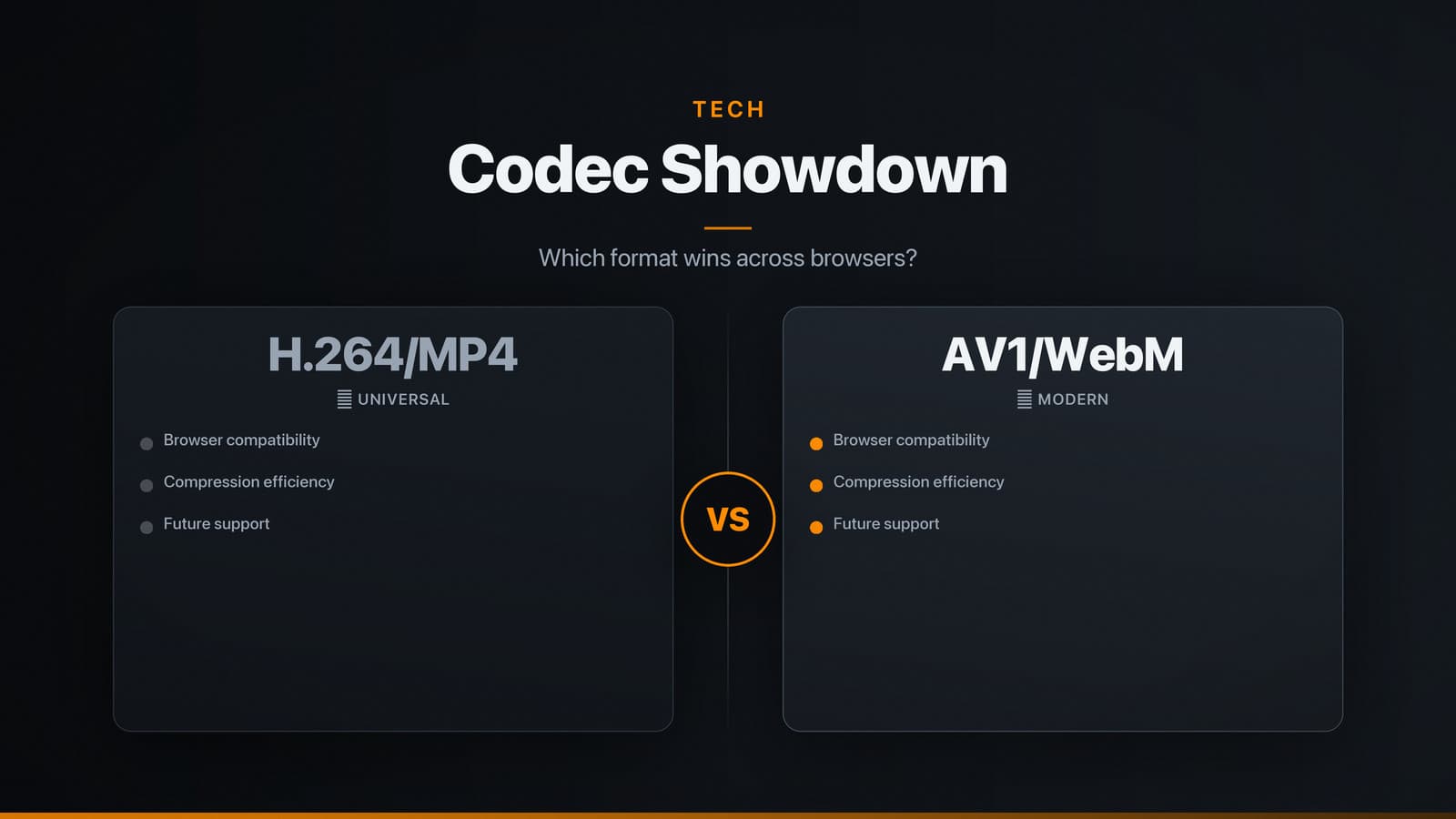
| Browser | H.264 / MP4 | VP9 / WebM | AV1 / WebM | Ogg Theora / Ogg |
|---|---|---|---|---|
| Chrome (desktop & Android) | ✅ | ✅ | ✅ (available behind a flag on versions ≤ 94) | ❌ |
| Edge (Chromium) | ✅ | ✅ | ✅ (supported in recent builds) | ❌ |
| Firefox (desktop & Android) | ✅ (via OS support) | ✅ | ✅ (stable since v94) | ✅ |
| Safari (macOS, iOS) | ✅ | ❌ | ✅ (macOS 13+, iOS 16+) | ❌ |
| Opera (desktop & Android) | ✅ | ✅ | ✅ (same engine as Chrome) | ❌ |
Key take‑aways
- Broadest reach today: H.264 in an MP4 container plays in every major browser on desktop and mobile.
- Emerging support: AV1 in WebM is increasingly hardware‑accelerated on newer Chrome, Edge, and Safari releases. VP9 remains widely supported on Chrome‑based browsers.
- Legacy option: Ogg Theora is only useful for very old Firefox installations; it adds file size without measurable benefit for most audiences.
Practical workflow
- Encode an H.264/MP4 version for universal fallback.
- Encode a WebM version (VP9 or AV1) for browsers that prefer those codecs.
- Serve both files via
<source>elements; the browser selects the first format it can decode.
2. Reliable Video Embedding – The <video> Tag Blueprint
<video
id="heroVideo"
controls
preload="auto"
playsinline
muted
width="640"
height="360">
<!-- Primary source – works everywhere -->
<source src="video/example-720p.mp4"
type="video/mp4; codecs="avc1.42E01E, mp4a.40.2"">
<!-- Modern browsers that prefer VP9 or AV1 -->
<source src="video/example-720p.webm"
type="video/webm; codecs="vp09.00.10.08, vorbis"">
<!-- Very old Firefox fallback -->
<source src="video/example-720p.ogv"
type="video/ogg; codecs="theora, vorbis"">
<!-- Text fallback for browsers without <video> support -->
<p>Your browser does not support HTML5 video. You can
<a href="video/example-720p.mp4">download the video</a> instead.</p>
</video>
Why each attribute matters
| Attribute | Effect |
|---|---|
controls | Guarantees a usable UI when JavaScript is unavailable. |
preload="auto" | Starts downloading the file as soon as the page loads; switch to metadata for users on limited connections. |
playsinline | Prevents iOS from forcing full‑screen playback, which is required for most autoplay scenarios. |
muted | Satisfies Chrome, Edge, and Safari autoplay policies; muted videos may start without a user gesture. |
width / height | Reserves layout space, reducing cumulative layout shift (CLS). |
Ordering sources – List the most widely supported format first (MP4). Browsers stop parsing <source> elements after they find a compatible file, so the order determines the fallback path.
3. Autoplay and Interaction Rules – Getting Video to Play Automatically
| Browser | Autoplay condition | Typical workaround |
|---|---|---|
| Chrome (desktop & Android) | Allowed if the video is muted or has no audio track. | Add muted attribute or start playback after a click/tap. |
| Edge (Chromium) | Same as Chrome. | Same as Chrome. |
| Firefox | Muted videos may autoplay; unmuted videos require a prior interaction. | Use muted or trigger playback from a user event. |
| Safari (macOS, iOS) | Autoplay only if muted and playsinline is present. | Include both attributes; otherwise wait for a gesture. |
| Opera | Mirrors Chrome’s policy. | Same as Chrome. |
Implementation steps
Add
mutedandplaysinlineto any video you intend to start automatically.Attempt playback and handle rejection
const video = document.getElementById('heroVideo');

function tryPlay() {
  const promise = video.play();
  if (promise !== undefined) {
    promise.catch(() => {
      // Autoplay blocked – wait for a user interaction
      document.addEventListener('click', () => video.play(), { once: true });
    });
  }
}

// Run after the DOM is ready
document.addEventListener('DOMContentLoaded', tryPlay);
- Respect data‑saving preferences
if (!navigator.connection?.saveData) {
  tryPlay();
}
The navigator.connection.saveData flag is supported in Chrome and Safari; when true, defer autoplay to avoid unwanted data usage.
4. Enabling and Verifying Hardware Acceleration – Keep Decoding Fast
How to check GPU‑accelerated decoding
| Browser | Diagnostic page | What to look for |
|---|---|---|
| Chrome | chrome://gpu | Under Video Decode, “Hardware accelerated video decode” should read Enabled for the codec you are testing. |
| Edge (Chromium) | edge://gpu | Same indicators as Chrome. |
| Firefox | about:support → Graphics section | “GPU Accelerated Video Decoding” should be Enabled for the active codec. |
| Safari | No dedicated page; open Console and monitor CPU usage while playing. Low CPU usage typically indicates hardware decoding. | |
| Opera | opera://gpu | Same indicators as Chrome. |
Tips to encourage hardware decoding
- Prefer GPU‑friendly codecs – H.264, VP9, and AV1 have broad hardware support on modern devices. Ogg Theora is almost always decoded in software.
- Stay within common resolution limits – Most laptops handle 1080p comfortably. 4K may fall back to software decoding on older hardware. Test with 1080p as a baseline.
- Avoid forcing unsupported profiles – Do not specify a codec string that exceeds the device’s capabilities; let the browser negotiate the optimal profile.
- Keep graphics drivers up to date – On Windows and macOS, recent driver releases add AV1 hardware support that browsers can use immediately.
If a particular codec consistently falls back to software decoding, provide an alternative file encoded with a GPU‑friendly codec for the affected platform.
5. Adaptive Streaming and Media Source Extensions (MSE) – Smooth Quality Across Networks
Browser support matrix
| Browser | Native streaming protocol | Recommended fallback |
|---|---|---|
| Safari (macOS, iOS) | HLS (built‑in) | Use HLS directly; no JavaScript required. |
| Chrome, Edge, Opera | DASH via MSE | Use DASH with MSE, or HLS via hls.js if a single workflow is preferred. |
| Firefox | Supports DASH (MSE) and HLS (via hls.js). | Choose DASH for consistency with Chromium‑based browsers. |
Minimal MSE example for DASH
if ('MediaSource' in window) {
  const video = document.getElementById('heroVideo');
  const mediaSource = new MediaSource();
  video.src = URL.createObjectURL(mediaSource);

  mediaSource.addEventListener('sourceopen', () => {
    // Fetch the initialization segment, then start appending media chunks.
    fetch('dash/init.mp4')
      .then(r => r.arrayBuffer())
      .then(init => {
        const sb = mediaSource.addSourceBuffer('video/mp4; codecs="avc1.42E01E"');
        sb.appendBuffer(init);
        // Continue fetching and appending segment files based on bandwidth.
      });
  });
}
For production deployments, use an open‑source library such as dash.js. The library handles bitrate adaptation, buffer management, and error recovery across Chrome, Edge, Firefox, and Opera.
HLS with hls.js (for non‑Safari browsers)
if (Hls.isSupported()) {
  const hls = new Hls();
  hls.loadSource('hls/playlist.m3u8');
  hls.attachMedia(document.getElementById('heroVideo'));
}
Safari ignores the script and plays the HLS stream natively, allowing a single <video> element to work everywhere.
Bandwidth‑aware rendition selection (conceptual)
- Measure throughput – Use
navigator.connection.downlinkwhere available, or estimate from the time taken to download a recent segment. - Choose a representation – Select the highest bitrate that stays below roughly 80 % of the measured bandwidth to leave headroom for network variability.
- Switch streams – Append the next segment of the chosen representation via the source buffer. Mature libraries (dash.js, hls.js, Shaka Player) implement this logic reliably; building a custom solution is error‑prone.
6. Mobile vs. Desktop Performance – Optimising Loading and Playback
| Aspect | Desktop recommendation | Mobile recommendation |
|---|---|---|
| Initial bitrate | Start with 1080p (or 720p for bandwidth‑conscious sites). | Begin with 480p or 360p; allow adaptive streaming to raise quality if the connection permits. |
| Preloading | preload="auto" is acceptable when the video is central (e.g., hero banner). | Prefer preload="metadata" or omit the attribute to avoid unnecessary cellular data use. |
| Poster image size | Provide a high‑resolution poster (≥ 1280 px wide) for crisp displays on large monitors. | Use a smaller, compressed poster (≤ 640 px) to reduce download time on limited‑bandwidth connections. |
| Lazy loading | Not critical for above‑the‑fold videos, but useful for secondary content. | Implement lazy loading with IntersectionObserver so the video starts downloading only when it enters the viewport. |
| Audio handling | Autoplay with sound is rarely allowed; keep videos muted unless a user initiates playback. | Same rule applies; additionally, respect the device’s “Reduce Motion” and “Sound” accessibility settings. |
Example of lazy loading with IntersectionObserver
const video = document