Decide on a Customizable Browser
Choose between camofox-browser and mainstream lightweight browsers based on your priorities
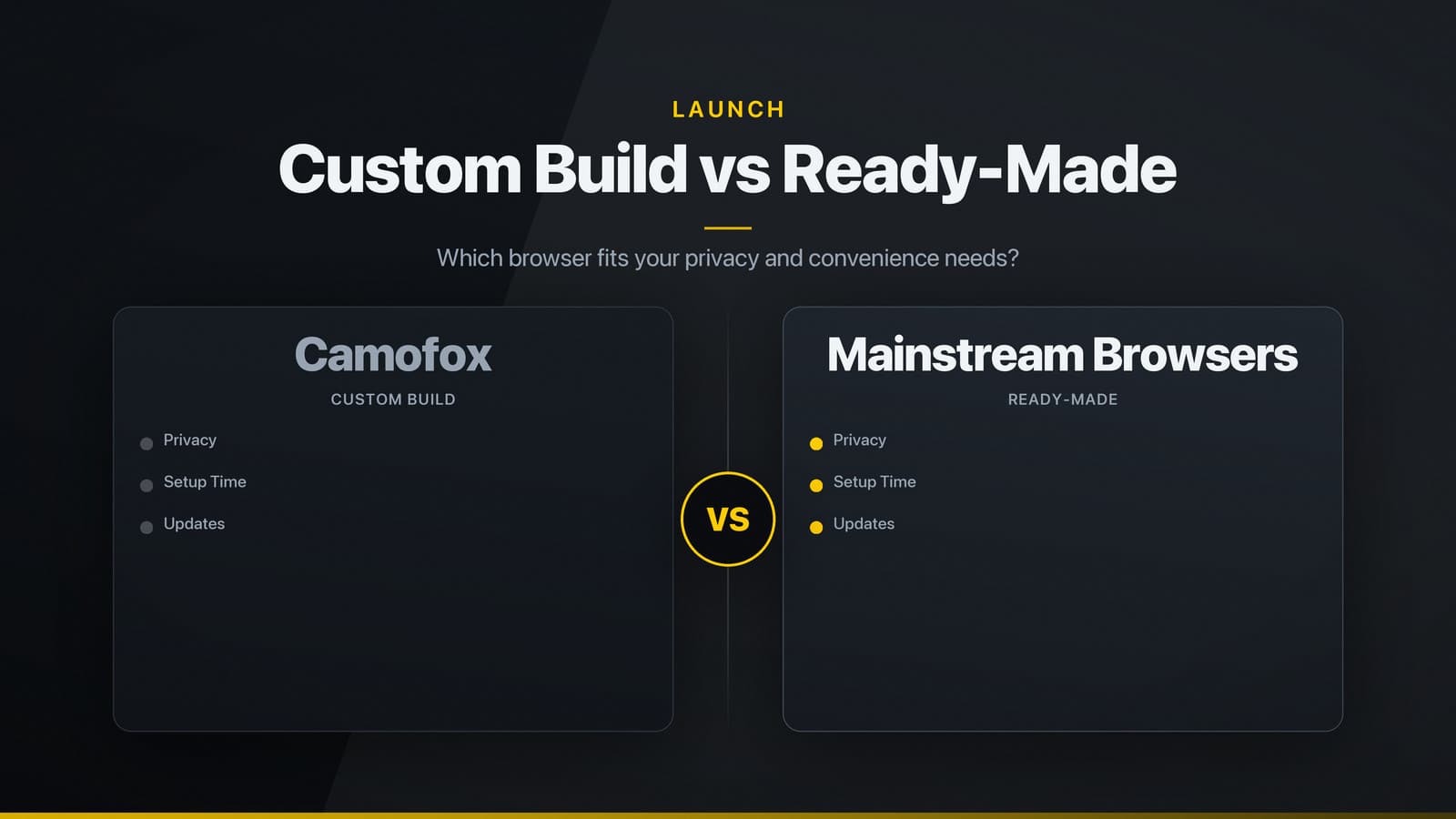
Recommendation – Decide Based on Your Priorities
If you need a browser that you can compile from source, customise the user interface, and run without built‑in telemetry, the camofox‑browser project is worth evaluating. It offers a minimal, privacy‑focused engine that can be built for Windows, macOS, and Linux using a defined set of development tools.
For users who prefer an out‑of‑the‑box solution with guaranteed long‑term updates, mainstream lightweight browsers such as Vivaldi, Brave, or Falkon may provide a safer default. The trade‑off is clear: camofox‑browser gives you control and transparency at the cost of manual setup and reliance on community maintenance; established browsers give you convenience and broader support but include features you may not need and may collect usage data. Choose the factor—control versus convenience—that matters most for your workflow, then follow the steps below to assess camofox‑browser.
Purpose and Core Functionality
camofox‑browser is an open‑source web‑view application maintained under the jo‑inc GitHub organization. Its stated goal is to provide a minimal, privacy‑focused browsing environment that can be embedded in custom workflows or used as a standalone desktop browser. The core features listed in the repository’s README include:
- WebKit‑based rendering – the browser relies on the platform’s native WebKit (or Blink via a wrapper) rather than bundling a separate engine.
- Single‑process architecture – the UI and renderer run in the same process, which can simplify debugging and may affect memory usage, although no public benchmarks are provided.
- Configurable UI – a simple toolbar can be toggled or replaced through HTML/CSS assets, allowing developers to tailor the look and feel.
- Command‑line options – flags exist for private mode, custom user‑data directories, and opening a URL directly.
- No built‑in telemetry – the source code contains no analytics calls, appealing to privacy‑conscious users.
The intended audience is developers or power users who want a transparent, easily auditable browser that can be compiled for Windows, macOS, or Linux. It is not marketed as a feature‑rich replacement for Chrome or Firefox; rather, it targets scenarios such as:
- Embedding a web view in a desktop utility.
- Running a browser on low‑spec hardware where memory consumption matters.
- Auditing or extending the UI without dealing with a large codebase.
If those use cases match your needs, camofox‑browser is worth a closer look.
How to Install and Run
The repository does not provide pre‑built installers for every platform, so you will need to compile the source locally. The steps below follow the instructions in the project’s README.md. Adjust the commands for your operating system as noted.
Prerequisites
| Tool | Minimum version (as of the latest commit) | Reason for requirement |
|---|---|---|
| Git | 2.20+ | Cloning the repository |
| Node.js | 14.x or newer | Packaging HTML/CSS assets (if the UI uses a JavaScript build step) |
| npm or yarn | bundled with Node.js | Installing JavaScript dependencies |
| Rust toolchain (cargo, rustc) | 1.55+ | Compiling the native binary |
| CMake (optional) | 3.15+ | Building platform‑specific glue code |
| Platform SDKs | • Windows: Visual Studio Build Tools 2019 or newer • macOS: Xcode command‑line tools (latest) • Linux: build‑essential, libgtk‑3-dev, libwebkit2gtk‑4.0-dev | Required for native compilation on each OS |
Install missing tools with your system’s package manager (e.g., apt, brew, chocolatey) before proceeding.
Clone the Repository
git clone https://github.com/jo-inc/camofox-browser.git
cd camofox-browser
Install JavaScript Dependencies (if applicable)
npm ci # or `yarn install` if the project uses Yarn
The ci command installs the exact versions recorded in package-lock.json, reproducing the maintainers’ build environment.
Build the Native Component
The core engine is a Cargo workspace written in Rust. Run:
cargo build --release
The compiled binary appears in target/release/camofox-browser. On Windows the file is camofox-browser.exe; on macOS and Linux it is an executable without an extension.
If the repository uses CMake instead, the equivalent commands are:
mkdir build && cd build
cmake .. -DCMAKE_BUILD_TYPE=Release
cmake --build .
Package the UI Assets
If the UI is bundled as static files, the build step may already copy them into a dist/ folder. Verify that dist/ contains index.html, CSS, and any JavaScript bundles. If not, run the packaging script defined in package.json:
npm run build # typically maps to a Webpack or Parcel build
Run the Browser
From the repository root (or from target/release), launch:
./target/release/camofox-browser [options] <url>
Common options include:
--private– start without persisting cookies or history.--user-data-dir /path/to/dir– specify a custom profile location.--no-toolbar– hide the default toolbar for a bare view.
On Windows replace ./target/release/camofox-browser with the full path to the .exe file.
Platform‑Specific Notes
- Windows – The Visual C++ Redistributable must be present; otherwise the binary may fail to start.
- macOS – Gatekeeper may block the unsigned binary. B