Switch to Free Open-Source Spreadsheets on Mac
How to move from paid spreadsheet software to free open-source alternatives on macOS, including setup, compatibility, and business use cases.
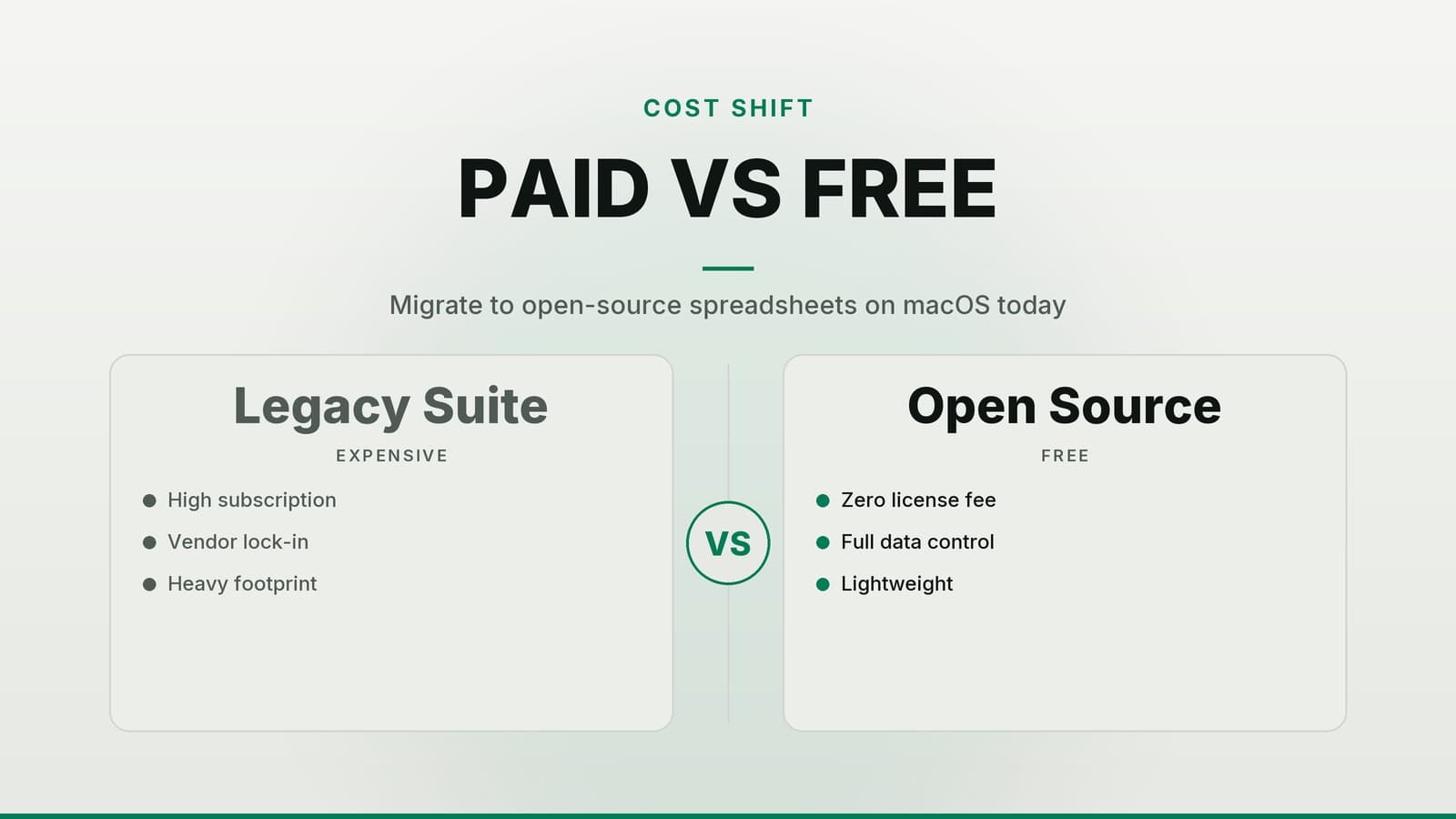
Why Consider an Open‑Source Spreadsheet on a Mac
If you are already paying for a commercial spreadsheet subscription, it’s worth checking whether you need the extra features for your day‑to‑day work. Many small‑business owners use spreadsheets mainly to:
- keep an inventory list,
- track cash flow, and
- create simple reports.
For those core tasks a free, open‑source spreadsheet can do the job while keeping licence costs at zero.
Open‑source tools also let you keep the files on your own servers or hard drive unless you choose to sync them to a cloud service. That means you control where the data lives and can decide when, or if, it is uploaded to a third‑party platform.
When you work offline in a desktop application, the data never leaves your machine unless you deliberately share it. For a restaurant owner logging daily sales or a retail shop managing stock, this can be an advantage if you prefer to avoid relying on an internet connection for routine work.
Choosing the Right Tool: LibreOffice Calc, Gnumeric, Apache OpenOffice, and Commercial Options
Open‑source spreadsheets differ in size, feature set, and user experience. Below is a side‑by‑side look at four common options. The table is meant to illustrate typical differences; check each project’s website for the latest feature list and compatibility details.
| Feature | LibreOffice Calc | Gnumeric | Apache OpenOffice Calc | Microsoft Excel | Google Sheets |
|---|---|---|---|---|---|
| Cost | Free for personal and commercial use | Free | Free | Check the vendor’s current pricing page for subscription or one‑time purchase options | Free with a Google account |
| Offline use | Yes | Yes | Yes | Yes (desktop) | Yes (desktop via offline mode) |
| File formats | Supports common spreadsheet formats; verify specific format support on the vendor site | Supports common spreadsheet formats; verify specific format support on the vendor site | Supports common spreadsheet formats; verify specific format support on the vendor site | Supports common spreadsheet formats including .xlsx and .csv | Supports common spreadsheet formats; verify specific format support on the vendor site |
| Macros / scripting | Supports macro languages; check documentation for specific scripting options | Supports macro languages; check documentation for specific scripting options | Supports macro languages | Includes macro capabilities | Supports scripting via Google Apps Script |
| Real‑time collaboration | Typically requires external sharing tools for simultaneous editing | Typically requires external sharing tools for simultaneous editing | Typically requires external sharing tools for simultaneous editing | Available through cloud‑based services | Built‑in collaboration features; check current capabilities |
| Updates | Community releases | Community releases | Community releases | Vendor releases tied to plan | Continuous cloud updates |
| Performance with large files | Depends on hardware and file complexity; test with your data | Depends on hardware and file complexity; test with your data | Similar to LibreOffice | Optimised for large datasets | Limited by browser memory |
| Learning curve for Excel users | Similar interface, some menu differences | Simple, minimal UI | Similar to LibreOffice | Familiar | Familiar |
| Accessibility | Keyboard shortcuts, screen‑reader support | Basic support | Basic support | Full support | Full support |
What to look for
| Decision factor | What to check |
|---|---|
| How many people will use it? | If only one or two people need to edit, a free tool is often enough. |
| Do you need real‑time collaboration? | If you regularly co‑edit a file, a cloud‑based solution may be easier. |
| Do you rely on existing macros? | Open‑source tools often use different macro languages; you may need to rewrite scripts. |
| What file sizes do you handle? | Test a typical file; large budgets or detailed inventory lists can push performance limits. |
| Do you need to stay within a specific ecosystem? | If your partners only use Excel, confirm that the open‑source tool can open and save .xlsx files without breaking formulas. |
Step‑by‑Step: Installing and Setting Up LibreOffice Calc on macOS
Below are the core steps you’ll need to get started. Each step is brief so you can jump straight into using the program.
1. Download
- Open your web browser and go to the official LibreOffice website.
- Click the Download button for macOS.
- The site will usually detect whether you have an Intel‑based or Apple‑Silicon Mac. If you’re unsure, double‑check the download that appears.
2. Install
- Open the downloaded
.dmgfile. - Drag the LibreOffice icon into the Applications folder.
- Launch the app from Launchpad or Finder.
3. Set the default file format
- Open Calc.
- Go to Tools > Options > Load/Save > General.
- In Default file format for spreadsheets, choose a Microsoft‑compatible format such as .xlsx.
- Click OK.
Setting the default to a widely used format reduces the need for manual conversion when sharing with clients or partners.
4. Familiarise with Mac shortcuts
| Action | Excel/Numbers | LibreOffice Calc |
|---|---|---|
| Copy | ⌘ C | ⌘ C |
| Paste | ⌘ V | ⌘ V |
| Save | ⌘ S | ⌘ S |
| Undo | ⌘ Z | ⌘ Z |
| Find | ⌘ F | ⌘ F |
If you need a different shortcut, you can customise it in Tools > Options > Keyboard.
5. Test a simple file
- Create a new spreadsheet.
- Enter a few numbers and a basic formula, such as
=SUM(A1:A5). - Save the file.
- Re‑open it to confirm the formula still works and that the file opens correctly in Excel if you try it on another machine.
6. Optional: Automate with AI
If you want to automate repetitive tasks, you can use an AI‑powered terminal guide linked elsewhere in the article. The graphical interface is usually sufficient for most spreadsheet work.
Protecting Your Existing Workbooks
Switching tools is safe if you follow a few precautions.
Back up first
- Copy all current spreadsheet files to a separate folder or an external drive.
- Keep the original files untouched; you’ll need them if conversion fails.
Test conversion on a sample set
| File type | What to check | Typical issue |
|---|---|---|
| Simple list | Cell values, formatting | None |
| Complex formulas | Calculation results, errors | Reference or name errors |
| Charts | Rendering, data source | Missing data points |
| Conditional formatting | Rules applied | Different visual cues |
If a formula fails, look for an equivalent function in the new program’s function list or rewrite the logic using its available functions.
Macros and VBA
- LibreOffice provides its own macro language; check the documentation to see if other scripting languages are supported in your version.
- VBA scripts from Excel generally require conversion or rewriting to run in LibreOffice.
- If you rely heavily on macros, consider whether rewriting them is worthwhile.
- For many small businesses, manual or simple scripted tasks are enough, so you may skip macros entirely.
Performance check
- Open a typical large file (e.g., an inventory list with 10 k rows).
- Observe calculation time and responsiveness.
- If the file feels sluggish, you might keep the commercial suite for that particular file or split the data into smaller sheets.
Practical Business Use Cases
Below are concrete ways to use LibreOffice Calc for everyday tasks. Each example includes a quick tip that can be copied into your sheet.
1. Inventory Management
| Column | Example | Tip |
|---|---|---|
| A | Item Name | |
| B | Current Stock | |
| C | Reorder Point | |
| D | Status | Use an IF‑type formula to flag items that fall below the reorder point, then apply conditional formatting to highlight them. |
2. Cash‑Flow Tracking
| Column | Example | Tip |
|---|---|---|
| A | Date | |
| B | Description | |
| C | Income | |
| D | Expense | |
| E | Balance | Use a running total formula that adds income and subtracts expenses row‑by‑row. |
3. Client Reporting
Create a clean, professional report and export it as PDF.
- Design the sheet with clear headings and borders.
- Go to File > Export as PDF.
- In the PDF options, enable “Export all sheets” and set a print range if needed.
- Save and send the PDF to the client.
Tip: PDF export preserves fonts and layout, so the recipient sees exactly what you intended.
4. Collaboration
Sharing files is simple, but real‑time co‑editing is often handled through external services.
- Email the file.
- Upload to a shared folder on Dropbox, OneDrive, Google Drive, or a similar service and let others download a copy.
- If you need to edit the same file simultaneously, consider a cloud‑based spreadsheet or a dedicated collaboration platform.
Tip: Use a naming convention that includes the date (e.g., Sales_Report_2024-10-12.xlsx) to avoid version confusion.
Security, Privacy, and Compliance
- Local processing reduces the chance that data leaves your premises, but it does not guarantee immunity from malware or accidental loss.
- If you handle personal data (e.g., customer details or employee records), you must still comply with applicable regulations such as GDPR or HIPAA. Consult a legal professional for guidance.
- Back up regularly and store copies in a secure location.
- If you choose to sync files to a cloud service, review the provider’s privacy policy and data‑processing agreements.
How HeyGrowin Can Help
HeyGrowin provides practical software solutions, including custom inventory, billing, and CRM tools, that can integrate with your spreadsheet workflows or replace them entirely for more complex needs. We also offer ready‑made tools and AI automation to help you save time on repetitive tasks. If you are unsure whether a free spreadsheet is sufficient for your specific business processes, we can help you evaluate your options and implement the right tools. Visit heygrow.in to learn more about how we support small businesses.
Frequently asked questions
Will my Excel files open correctly in LibreOffice Calc?
Most standard .xlsx files open without issue, but complex formulas, charts, or macros may need adjustment. Always test a few files before migrating your entire library.
Is LibreOffice Calc really free for business use?
Yes, it is open-source and free to use for both personal and commercial purposes. There are no licensing fees or per-user charges.
Can I use LibreOffice Calc on both Mac and Windows?
Yes, the software is cross-platform. Files created on Mac will open on Windows and vice versa, making it suitable for teams with mixed operating systems.