The Decision: Screen Capture vs Screenshot
Choosing between screen capture and screenshot tools for digital preservation and productivity.
Core Tradeoff: Static vs Dynamic Capture
A screenshot captures the pixel buffer at a single moment and saves it as an image file (PNG, JPEG, etc.).
A screen capture records a sequence of frames. It may be a short video, an animated GIF, or a scrolling capture that stitches together multiple static frames to show content beyond the visible window. The technical distinction is that a screenshot is a one‑time snapshot, while a screen capture involves time‑based or composite frames.
The choice therefore depends on whether the information can be conveyed in a single picture or requires motion, interaction, or a view of content that exceeds the viewport.
Recommendation
- Use a screenshot when the audience only needs a fixed visual state (e.g., bug reporting, UI diagram, quick reference).
- Use a screen capture when the audience must see change over time, interaction, or content that scrolls out of view (e.g., tutorial video, performance demo, scrolling‑page walkthrough).
The sections below explain why each method fits particular scenarios, how the output differs, and which tools make the process straightforward on the major platforms.
When to Choose Each Method
| Use‑case | Preferred method | Rationale |
|---|---|---|
| Bug reporting | Screenshot | Isolates the error state in a single frame, making comparison easy. |
| Step‑by‑step documentation (user manual) | Screenshot series | Static images can be placed alongside text, keep file size low, and are simple to annotate. |
| Live demo or feature showcase | Screen capture (video) | Motion shows the feature in action, captures transitions, and demonstrates responsiveness. |
| Scrolling web page or long list | Screen capture (scrolling capture or animated GIF) | A single screenshot would cut off content; a scrolling capture preserves the full context. |
| Performance testing (frame‑rate, lag) | Screen capture (video) | Video retains timing information that a screenshot cannot convey. |
| Presentation slide | Screenshot (high‑resolution PNG) | Slides benefit from crisp, lossless images that scale without artifacts. |
| Social‑media tutorial | Screen capture (short video or GIF) | Platforms favour short, looping media; GIFs play instantly without a player. |
| Compliance audit (evidence of UI at a point in time) | Screenshot | A timestamped image provides a clear, immutable record. |
| Remote assistance | Screen capture (live streaming) | Real‑time video lets the helper see cursor movement and UI changes as they happen. |
When the decision is not obvious, ask: Does the audience need to see change, interaction, or hidden content? If yes, opt for a screen capture; otherwise, a screenshot is usually more efficient.
Formats, Quality, and File Size
| Capture type | Typical formats | Quality characteristics | Typical size for a 1920 × 1080 capture |
|---|---|---|---|
| Screenshot | PNG (lossless), JPEG (lossy), BMP (uncompressed) | PNG preserves every pixel; JPEG reduces size by discarding detail, with quality adjustable from 0‑100 %. | PNG often occupies a few megabytes; JPEG can be under a megabyte, depending on quality settings. |
| Animated GIF (screen capture) | GIF (8‑bit palette) | Limited to 256 colors; suitable for short loops but can become large at high resolution. | A 5‑second 720p loop may be several megabytes; size varies with color complexity. |
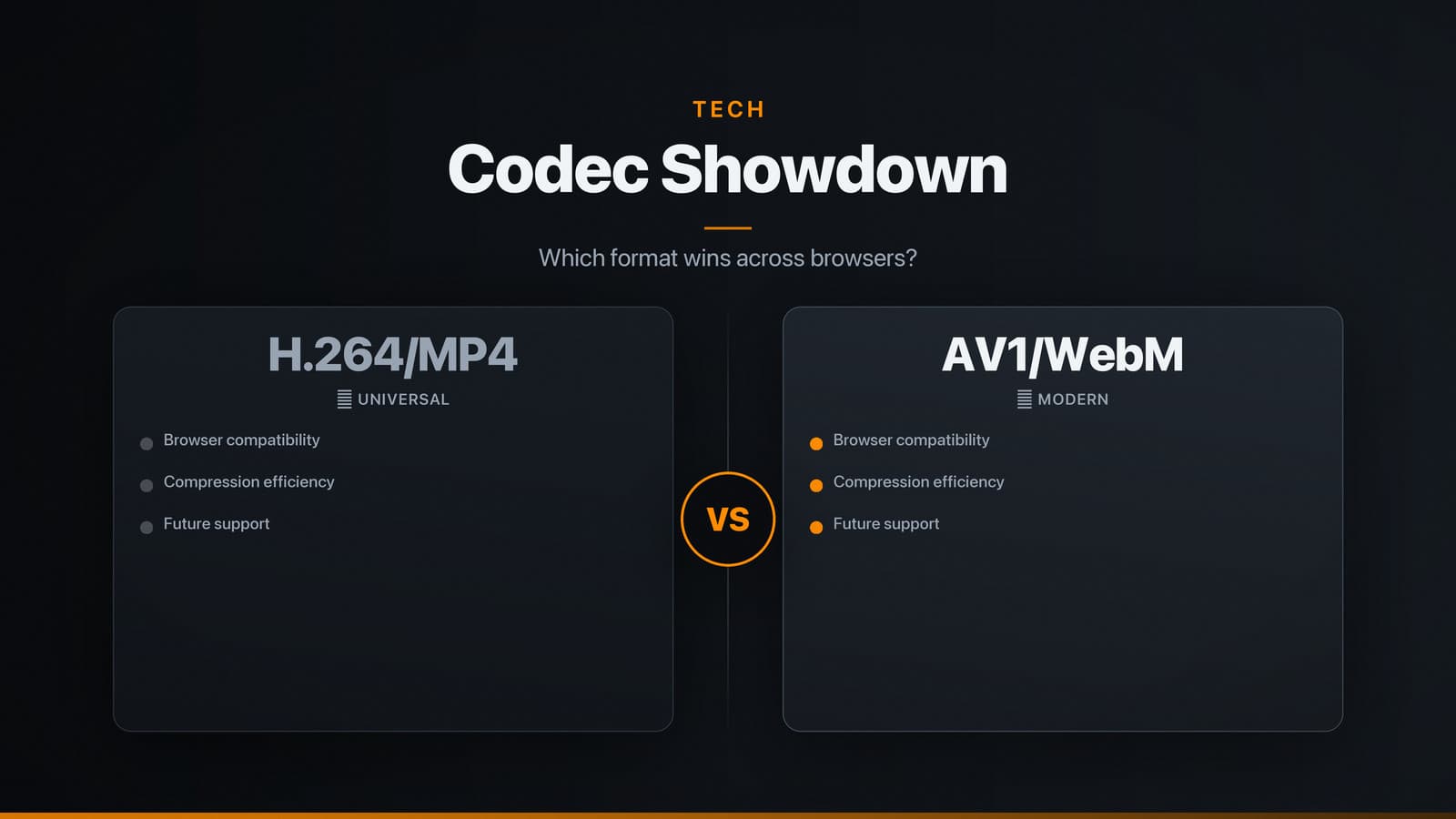
| Video capture | MP4 (H.264), WebM (VP9), MOV (HEVC) | H.264 balances quality and compatibility; HEVC offers better compression but older devices may lack support. | A 30‑second 1080p MP4 encoded at about 5 Mbps is roughly 18 MB; actual size depends on bitrate and codec. |
| Lossless video (e.g., ProRes) | MOV (ProRes) | Retains every frame; used mainly for professional editing because files are large (hundreds of megabytes per minute). | Not recommended for routine capture. |
Resolution matches the display settings at capture time. On high‑DPI monitors (e.g., 4K), screenshots inherit the native pixel count, which can increase file size dramatically. Reducing resolution before sharing (via a resize tool) helps keep storage and bandwidth reasonable.
Compression options are usually exposed in the capture software. For screenshots, most tools let you choose PNG (default) or JPEG with a quality slider. For video, you can set bitrate, frame rate, and codec. If you need an exact figure for a given setting, export a short test clip and inspect the file size in the operating system’s file explorer.
Platform‑Specific Shortcuts & Tools
Windows
| Task | Built‑in shortcut | Free tools (common use) | Paid tools (common use) |
|---|---|---|---|
| Screenshot (rectangular) | Win + Shift + S (opens Snip & Sketch) | Snip & Sketch – basic annotation | Snagit – priced around $50 for a single‑user license; advanced editing, cloud library |
| Full‑screen screenshot | Print Screen → paste into Paint or Win + PrtScn (saves PNG to Pictures\Screenshots) | Greenshot – quick save, export to PDF, OCR | |
| Scrolling capture (web page, long document) | – | ShareX – includes a “Scrolling capture” plugin | Snagit – built‑in scrolling capture |
| Screen recording (video) | Win + G (opens Xbox Game Bar) – works for any window | OBS Studio – highly configurable, free | Camtasia – costs several hundred dollars; includes timeline editing and captions |
macOS
| Task | Built‑in shortcut | Free tools (common use) | Paid tools (common use) |
|---|---|---|---|
| Screenshot (selection) | Shift + Cmd + 4 | Screenshot app (accessed via Shift + Cmd + 5) – includes timer and save options | Snagit – around $50 |
| Full‑screen screenshot | Shift + Cmd + 3 | Same as above | |
| Scrolling capture | – | Shottr – free, limited scrolling support | Snagit – scrolling capture |
| Screen recording (video) | Shift + Cmd + 5 → “Record Entire Screen” or “Record Selected Portion” | OBS Studio – free, cross‑platform | Camtasia – several hundred dollars |
Linux (GNOME/KDE and generic)
| Task | Built‑in shortcut | Free tools (common use) |
|---|---|---|
| Screenshot (area) | Print Screen (GNOME) → opens Screenshot UI | Flameshot – fast, customizable, clipboard support |
| Full‑screen screenshot | Print Screen (saves to Pictures) | Shutter – includes annotation and upload |
| Scrolling capture | – | Kazam (with “Screen Recording” → “Window” + scroll) – limited; OBS Studio can record and later trim |
| Screen recording (video) | – | OBS Studio – free, supports H.264, VP9 |
| Animated GIF capture | – | Peek – records a region to GIF, useful for short demos |
Android
| Task | Built‑in method | Free apps (common use) |
|---|---|---|
| Screenshot | Power + Volume‑Down (most devices) | Screenshot Easy – adds watermark, quick share |
| Screen recording (video) | Power + Volume‑Down (hold ~2 s) on Android 11+; or pull‑down quick‑settings “Screen Record” | AZ Screen Recorder – free, adds cursor highlight |
| Scrolling capture | – | LongShot for Long Screenshot – stitches vertical scroll, free with ads |
iOS
| Task | Built‑in method | Free apps (common use) |
|---|---|---|
| Screenshot | Side button + Volume‑Up (or Home + Side/Power) | Tailor – trims and stitches multiple screenshots for scrolling capture |
| Screen recording (video) | Add “Screen Recording” to Control Center → tap to start | Record it! – free, adds simple editing and annotation |
| Scrolling capture | – | Picsew – free tier allows basic scrolling capture; paid upgrade removes limits |
Tip: When a built‑in method does not support scrolling, the usual workaround is to capture a series of overlapping screenshots and stitch them with a desktop tool (e.g., GIMP, ImageMagick) or a mobile app designed for that purpose.
Privacy, Legal, and Copyright
Personal data – Screenshots can inadvertently capture usernames, email addresses, or other identifiers. Before sharing, use a blur or redaction tool (most screenshot editors include a “blur” brush). For video, pause the timeline and apply a mask, or edit the clip to remove sensitive sections.
Data‑protection regulations – If a capture includes data belonging to individuals in jurisdictions with strict privacy laws (e.g., GDPR in the EU), treat it as personal data. Obtain consent or anonymize the information before distribution.
Copyrighted UI – Many software licences restrict redistribution of graphical interfaces without permission. This is common with proprietary applications, games, and some SaaS products. Verify the licence or seek explicit permission before publishing captures that reveal the look of such software.
Compliance evidence – For audits or legal disputes, keep the original capture file unaltered and store it securely. Adding timestamps or digital signatures can help demonstrate authenticity.
Export settings and metadata – Some formats embed metadata (e.g., device name, location). Review and strip metadata if it could reveal sensitive information. Most editing tools offer an option to remove EXIF or similar data before sharing.
By selecting the appropriate