How to Use a Point‑of‑Sale System for Your Small Business
A practical guide that shows owners how to set up, use and get the most from a POS system in 1200‑1500 words.
Why a POS System Matters
For a small business juggling sales, stock, and staff, a Point of Sale (POS) system replaces the patchwork of spreadsheets, paper receipts, and manual counts with a single source of truth. It does more than just ring up sales; it connects your front-of-house activity to back-office data.
The core value lies in automation and visibility. When every sale is recorded digitally, you gain immediate insight into what is selling, who is buying, and how much stock remains. This shifts your management style from reactive (fixing problems after they happen) to proactive (adjusting staffing or ordering before issues arise).
| Benefit | Practical Application |
|---|---|
| Real-time sales tracking | Every sale appears instantly in the dashboard. You can see how the day is shaping up without waiting for an end-of-day report. |
| Reduced manual errors | The system calculates totals, taxes, and change automatically. This minimizes till discrepancies and speeds up end-of-day cash counts. |
| Inventory alerts | When stock falls below a preset level, the POS flags it for re-order. This helps prevent stock-outs that halt sales. |
| Customer history | If you collect contact details, each transaction links to a customer profile. This enables targeted promotions and tracks loyalty program usage. |
Choosing the Right POS for Your Business
Selecting the right system depends on your specific operational workflow. A POS that works perfectly for a high-volume café may be cumbersome for a boutique service provider.
Match features to your industry
Different business models require different core functionalities. Before comparing vendors, identify which of these features are non-negotiable for your daily operations.
| Industry | Critical Feature | Why It Matters |
|---|---|---|
| Café / Restaurant | Table management & Kitchen Display System (KDS) | Wait staff assign orders to tables; kitchen sees tickets instantly, reducing miscommunication and wait times. |
| Clinic / Pharmacy | Appointment integration & Itemized billing | Staff can link product sales (e.g., dental supplies) to a specific appointment. Note: Ensure the software complies with local health data privacy regulations (such as HIPAA or GDPR) if it handles patient records. |
| Retail Shop | Barcode scanning & Price rules | Cashiers scan SKUs for speed; discounts apply automatically based on loyalty status or seasonal promotions. |
| Service Firm (Gym, Salon, Tutoring) | Time-based billing & Appointment booking | Sessions are logged, billed by the hour or minute, and added to client history for retention tracking. |
Note: Service firms have distinct needs. A gym may prioritize membership management, while a tutoring center may focus on class scheduling. Verify that the POS handles your specific booking logic.
Hardware considerations
You do not always need to buy new hardware. Many modern POS systems run on devices you already own.
| Component | Typical Options | What to Check |
|---|---|---|
| Terminal | Tablet (iPad/Android), All-in-one countertop, or Laptop | Does the POS app run natively on your existing device? |
| Barcode Scanner | Handheld laser, Bluetooth, or Camera-based | If you sell many low-margin items, a dedicated fast scanner improves throughput. |
| Receipt Printer | Thermal (standard) or Inkjet (branded) | Thermal printers are low-maintenance and standard for receipts. Inkjet is rarely needed unless you require full-color marketing inserts. |
| Card Reader | Plug-in, Bluetooth, or Integrated EMV | Verify compatibility with the payment processors you plan to use. |
Ask the vendor whether hardware is included in the subscription or sold separately. You can often start with a minimal setup (a tablet and a card reader) and add a printer or scanner later as needs grow.
Pricing model basics
Most cloud-based POS platforms charge a subscription fee, typically per user per month, plus transaction fees.
- User limits: Some plans cap the number of staff logins. Ensure the cap covers your peak staffing levels.
- Transaction fees: A percentage or flat fee is charged on each card payment. Note that this is separate from your payment processor’s fee. Always calculate the total cost per transaction (POS fee + Processor fee) to understand your true margin impact.
- Feature tiers: Inventory management, loyalty programs, and advanced reporting often sit in higher-priced tiers.
Important: Pricing structures change frequently. Do not rely on outdated lists. Always verify current rates, plan limits, and included integrations on the vendor’s official pricing page before committing.
Cloud vs. On-premise
- Cloud / Mobile: Data lives on the vendor’s servers. This is the standard for most small businesses today. It allows remote access (e.g., checking sales from home) and handles software updates automatically. The main risk is internet dependency.
- On-premise: Data is stored on local servers or computers. You control the data physically, but you are responsible for backups, security patches, and hardware maintenance. This is rarely necessary for small businesses unless you have extremely specific security requirements or no reliable internet.
For most owners, a cloud solution is preferred because it offloads IT maintenance. However, if your internet connection is unstable, ask the vendor about offline mode: Can the POS continue processing sales and sync data once the connection is restored?
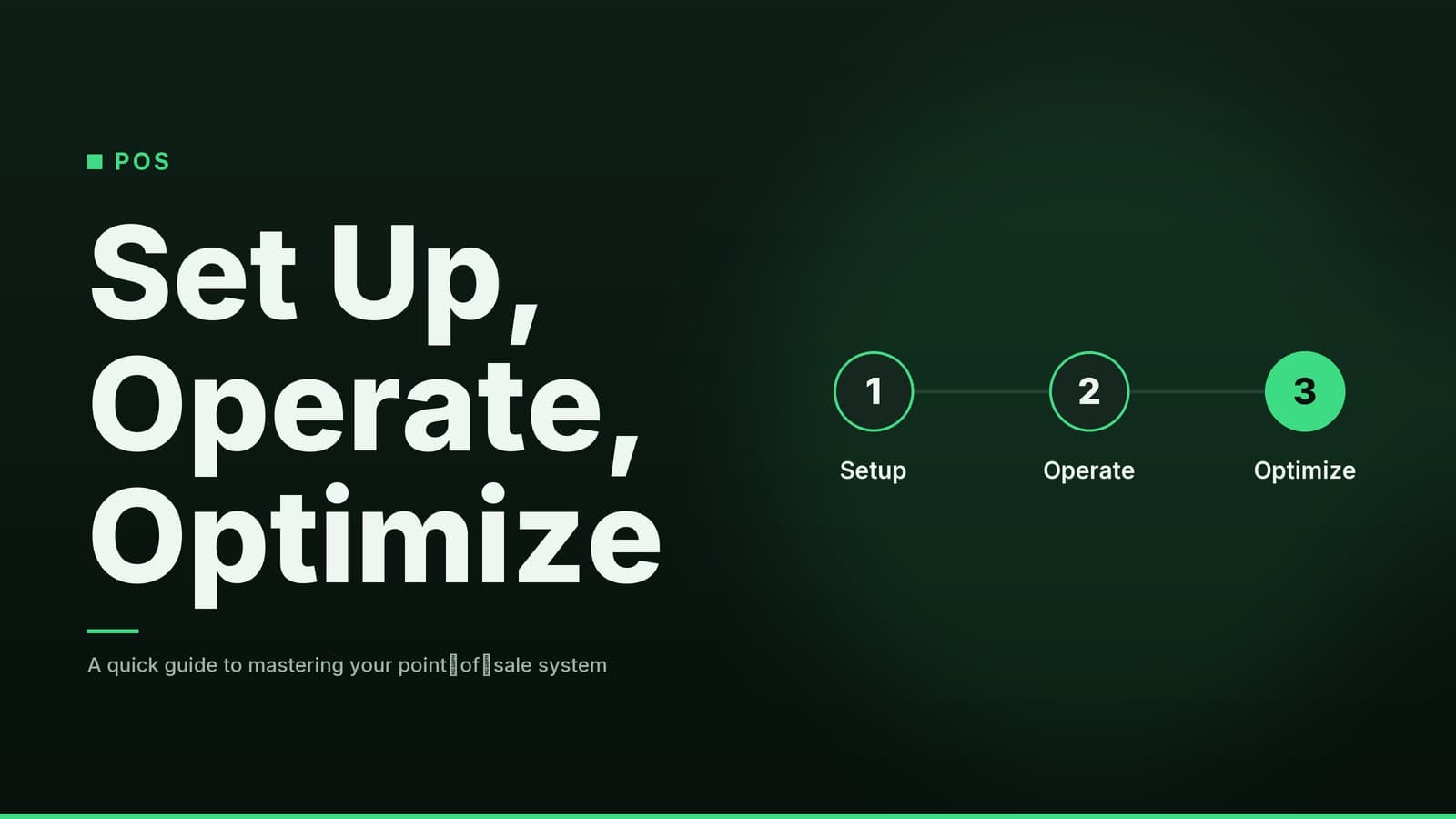
Step-by-Step Setup Checklist
A proper setup prevents errors before you open your doors. Follow these steps to ensure a smooth launch.
- Pick a vendor and sign up for a trial or demo
- Request a live walkthrough using your own product list. This reveals gaps in the software’s compatibility with your specific items.
- Order or install hardware
- A typical starter kit includes a tablet, card reader, and receipt printer. Place the terminal near a stable Wi-Fi router and a power source. Consider an Uninterruptible Power Supply (UPS) to protect against power spikes.
- Import product catalog and set prices
- Most POS tools allow you to upload a CSV file. Ensure your file includes SKU, description, price, and tax category for every item.
- Configure tax rates and payment methods
- Enter local sales tax percentages accurately. Enable all payment methods you accept, including cash, card, and digital wallets.
- Set up staff accounts and permissions
- Create a login for each employee. Assign role-based permissions (e.g., “Cashier” can only process sales; “Manager” can view reports and issue refunds). This limits accidental or unauthorized changes.
- Test a full transaction flow
- Add items, apply a discount, process a payment, and print/email the receipt. Run the same test for a return. Verify that the inventory count decreases correctly.
- Configure backup and data-retention settings
- If the POS offers automatic cloud backups, ensure they are enabled. For on-premise systems, schedule daily backups to an external drive or cloud storage.
- Train the team
- Conduct a short, hands-on session (30–45 minutes) for each role. Role-specific training means cashiers learn only what they need to do, while managers learn reporting features. Keep a printed cheat-sheet at the terminal for quick reference.
- Go live with a soft launch
- A soft launch means running the system for one shift or a limited period before opening fully to the public. This allows you to catch glitches without the pressure of a full customer load.
Using the POS on a Daily Basis
Once the system is live, daily habits determine its effectiveness.
| Daily Task | Quick Tip | Why It Matters |
|---|---|---|
| Scanning items | Keep the barcode scanner within arm’s reach. Use the tablet’s camera as a backup for unscannable codes. | Reduces manual entry errors and speeds up checkout. |
| Applying coupons | Set up one-tap buttons for your most common promotions. Link loyalty points to the customer’s phone number. | Improves customer experience and encourages repeat visits. |
| Receipts | Offer the email option by default. Keep a small stock of receipt paper for cash customers who prefer physical copies. | Reduces paper waste and creates a digital trail for follow-up marketing. |
| Shift reports | At the end of each shift, pull the “Shift Summary” report. Verify cash drawer totals against the report. | Early detection of discrepancies prevents larger accounting issues later. |
| Inventory checks | Review the “Low Stock” list daily. Set reorder thresholds based on your supplier’s lead time. | Prevents stock-outs without over-ordering. |
For a clinic, the daily flow might include verifying patient co-payment amounts before processing a card transaction. For a restaurant, staff will send orders to the kitchen display, then later close the table and split the bill.
If you need to check sales while away from the shop, most cloud POS apps have a mobile dashboard or web portal you can access from any device.
Common Pitfalls and How to Avoid Them
Even with a good system, implementation errors can undermine its value. Prioritize fixing these high-impact issues.
| Pitfall | Consequence | Preventive Action |
|---|---|---|
| Skipping staff training | Mistakes at checkout, incorrect discounts, frustrated customers. | Conduct brief, role-specific training sessions. Keep a cheat-sheet of the most-used functions at the terminal. |
| Ignoring backup procedures | Lost sales data if the device crashes or internet goes down. | Enable automatic cloud backups. For on-premise systems, schedule weekly manual exports to a spreadsheet. |
| Poor integration with accounting | Double entry of sales and expenses; time-consuming reconciliations. | Choose a POS with a built-in connector to your accounting tool (e.g., QuickBooks, Xero) or use a third-party integration platform. |
| Loose user permissions | Cashiers may accidentally (or intentionally) issue refunds or view sensitive financial data. | Define role-based permissions during setup. Review these permissions quarterly. |
| Relying on a single internet connection | System freezes during a sale if Wi-Fi drops. | Keep a mobile hotspot as a backup. Or, select a POS that works offline and syncs data later. |
Key Takeaways
- Match the tool to the workflow: A POS is only as useful as its fit for your specific industry (e.g., table management for restaurants, appointment linking for clinics).
- Verify costs: Always check current pricing pages for per-user fees and transaction costs. Do not rely on generic estimates.
- Train by role: Specific, short training sessions reduce errors more than generic all-staff meetings.
- Test before launch: Use a soft launch to identify glitches before facing full customer traffic.
- Secure your data: Enable automatic backups and define clear user permissions to protect against data loss and unauthorized access.
How HeyGrowin Can Help
HeyGrowin provides tools to help small businesses manage sales, inventory, and client data. We offer ready-made dashboards that can integrate with your existing website, booking system, or accounting software. Our platform is designed to simplify routine tasks, such as sending receipts and monitoring low-stock alerts, allowing you to focus on running your business.
You can learn more about our current tools and features at heygrow.in.
Frequently asked questions
Do I need a dedicated computer for a POS?
No, many POS systems run on tablets or smartphones, but you’ll still need a printer and card reader.
How much does a POS system cost?
Pricing varies; most vendors charge per user per month. Check the vendor’s current pricing page for up-to-date figures.
Can I use my existing cash register with a new POS?
Some systems offer adapters, but it’s often easier to replace the old register with a new POS unit.